NVIDIA Driver Toolkit
The nvidia-driver-toolkit add-on allows you to deploy out-of-band NVIDIA GRID KVM drivers to your existing SUSE Virtualization clusters.
|
The toolkit only includes the correct SUSE Virtualization OS image, build utilities, and kernel headers that allow NVIDIA drivers to be compiled and loaded from the container. You must download the NVIDIA KVM drivers using a valid NVIDIA subscription. For guidance on identifying the correct driver for your NVIDIA GPU, see the NVIDIA documentation. Each new SUSE Virtualization version is released with the correct |
The SUSE Virtualization ISO does not include the nvidia-driver-toolkit container image. Because of its size, the image is pulled from Docker Hub by default. If you have an air-gapped environment, you can download and push the image to your private registry. The Image Repository and Image Tag fields on the nvidia-driver-toolkit screen provide information about the image that you must download.
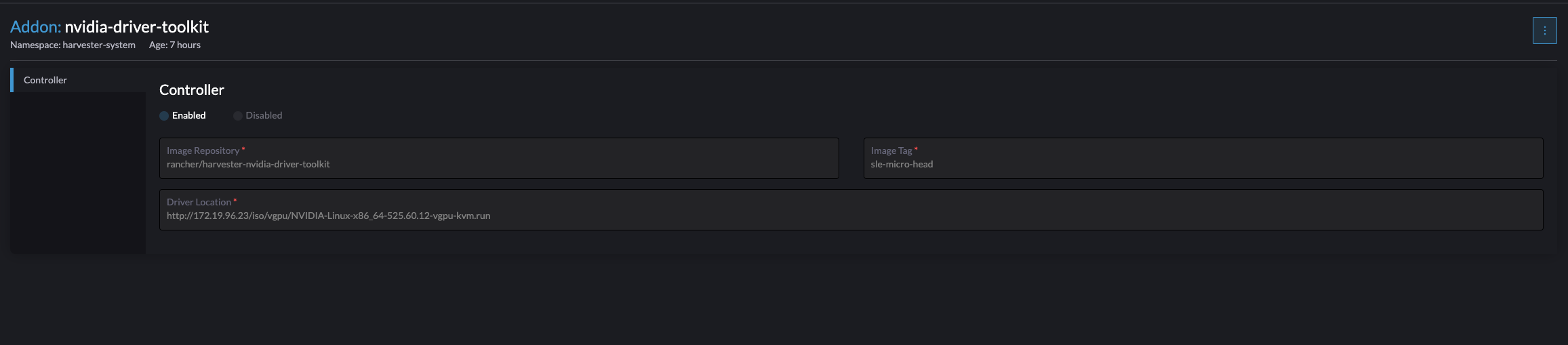
To enable the add-on, you must specify the HTTP location where the NVIDIA vGPU KVM driver file is located. You can also update the image repository and image tag, if necessary. Once the add-on is enabled, an nvidia-driver-toolkit daemonset is deployed to the cluster.
On pod startup, the ENTRYPOINT script downloads the NVIDIA driver from the specified driver location. Install the driver and load the kernel drivers.
The pcidevices-controller add-on can now leverage this add-on to manage the lifecycle of the vGPU devices on nodes containing supported GPU devices.
|
You must always restart virtual machines immediately after attaching or detaching vGPU devices to ensure proper synchronization. Failure to restart immediately may prevent the add-on disable check from accurately detecting devices in use. If you need to disable and re-enable the add-on while virtual machines are stopped with host devices still attached, you can add the annotation |
Installing different NVIDIA driver versions
NVIDIA driver versions can vary across cluster nodes. If you want to install a specific driver version on a node, you must annotate the node before starting the nvidia-driver-toolkit add-on.
kubectl annotate nodes {node name} sriovgpu.harvesterhci.io/custom-driver=https://[driver location]The add-on installs the specified driver upon starting.
If an NVIDIA driver was previously installed, you must restart the pod to trigger the installation process again.
Advanced node scheduling with node affinity
Starting with v1.8.0, the nvidia-driver-toolkit uses node affinity instead of nodeSelector for more flexible node scheduling.
Customizing node affinity
You can customize the node affinity settings to meet your specific requirements.
For example, if you add the labels gpu.model=A100 and gpu.model=A40 to nodes that use these GPU models, you can use the following node affinity settings to target the driver installation.
affinity:
  nodeAffinity:
    requiredDuringSchedulingIgnoredDuringExecution:
      nodeSelectorTerms:
      - matchExpressions:
        - key: sriovgpu.harvesterhci.io/driver-needed
          operator: In
          values:
          - "true"
        - key: gpu.model
          operator: In
          values:
          - "A100"
          - "A40"