How-tos for the Administrator of Liz: The Rancher AI Assistant
Upgrading Liz
Upgrade the rancher-ai-agent
To upgrade the rancher-ai-agent helm chart, run the following command:
helm upgrade rancher-ai-agent --namespace cattle-ai-agent-system \
    oci://registry.suse.com/rancher/charts/rancher-ai-agent \
--version 109.0.1+up1.0.2|
If you configured the model via the settings page, please report the settings back in the values file before updating. |
Upgrade the UI extension
Click on the 'Extension' menu in Rancher, then in the 'Installed' list, select 'SUSE AI Assistant'. Click on 'Upgrade to this version'.
For further information on managing extensions refer to the Managing Rancher Extensions documentation.
Configure Ollama provider
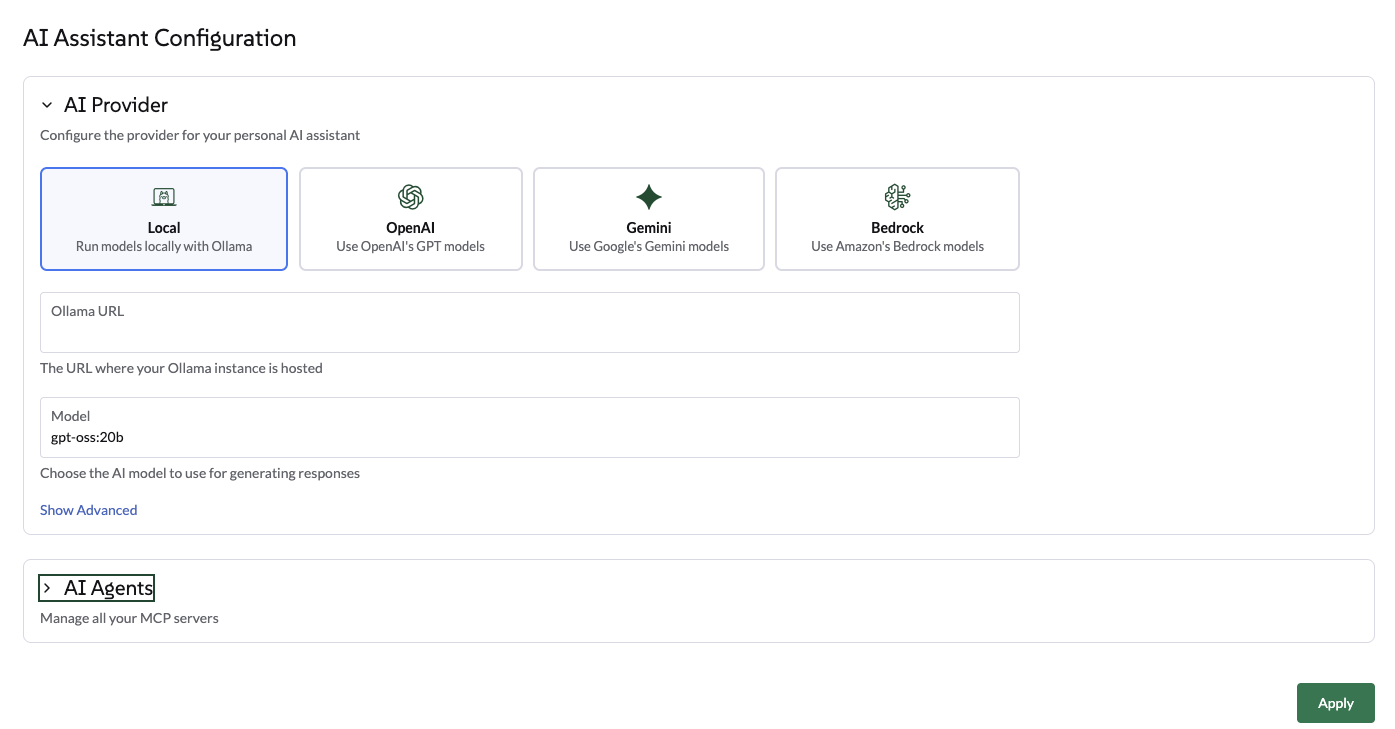
Select Ollama via the UI
Navigate to the Global Settings → AI Assistant tab.
-
Select Ollama as the provider.
-
Enter the Ollama Endpoint (for example, http://ollama:11434).
-
Once the endpoint is validated, select a model from the available models list. This list is automatically populated based on the models already pulled into your Ollama instance.
-
Click on Apply. The agent will restart, which may take a few seconds.
Select Ollama via the Helm chart
Use the following helm values to configure Ollama from the Agent helm chart:
ollamaLlmModel: "gpt-oss:120b"
ollamaUrl: "http://ollama:11434"
activeLlm: "ollama"
Update the chart:
helm upgrade --install --namespace cattle-ai-agent-system --create-namespace -f values.yaml rancher-ai-agent oci://registry.suse.com/rancher/charts/rancher-ai-agentRestart the rancher-ai-agent:
kubectl rollout restart deployment -n cattle-ai-agent-system rancher-ai-agent|
Ensure that the model specified in llmModel (e.g., gpt-oss:20b) has been previously pulled on your Ollama server using the ollama pull command, otherwise the agent will fail to initialize. |
Configure OpenAI provider
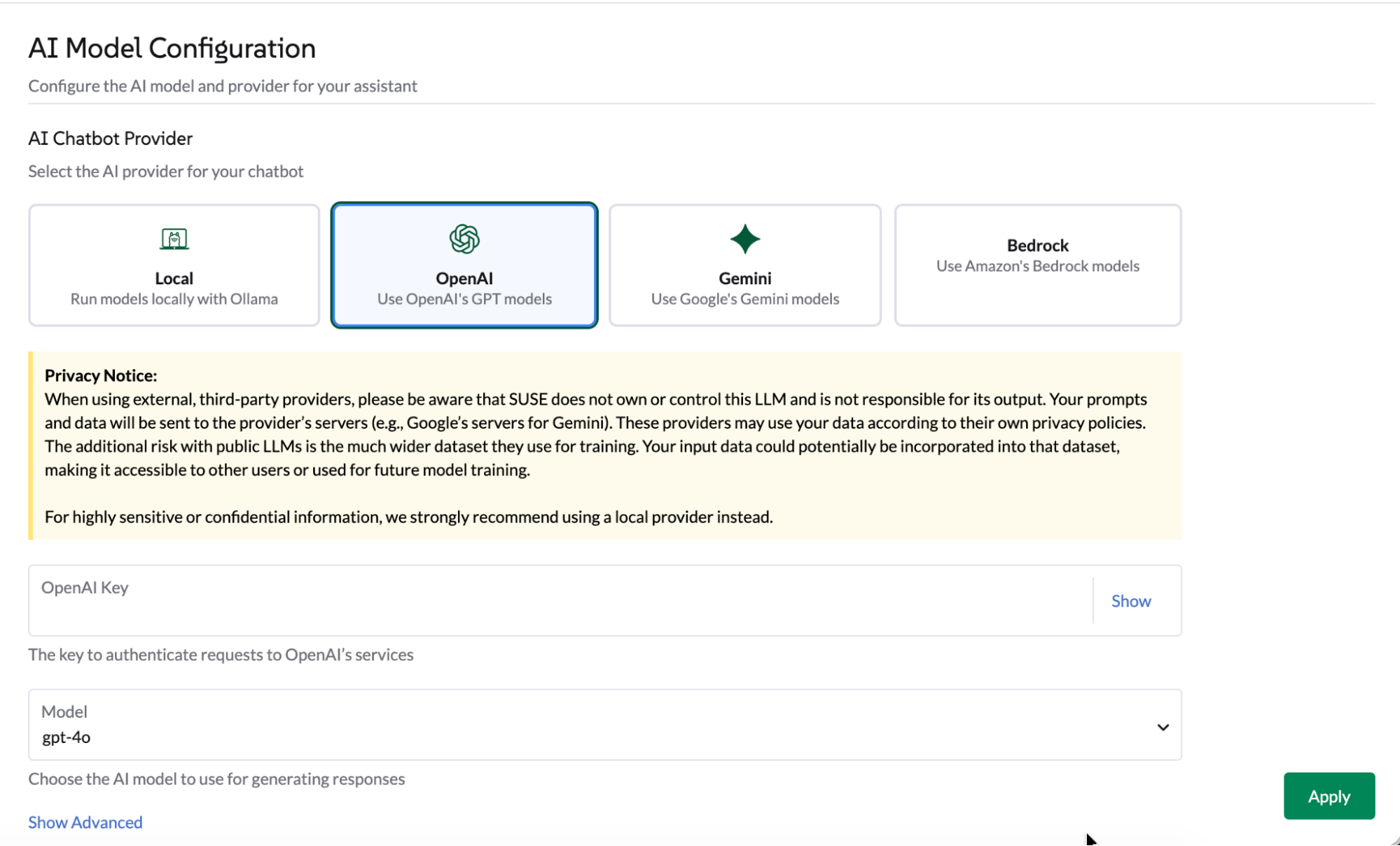
Select OpenAI via the UI
Navigate to the 'Global Settings' → 'AI Assistant' tab.
-
Select OpenAI, provide an OpenAI API Key. Head to platform.openai.com to sign up to OpenAI and generate an API key.
-
Select which model to use.
-
Click on Apply, the agent will restart which may take a few seconds.
Select OpenAI via the helm chart
Use the following helm values to configure OpenAI from the Agent helm chart:
openaiLlmModel: "gpt-4o"
openaiApiKey: "xxxxxxxxx"
activeLlm: "openai"
Update the chart:
helm upgrade --install --namespace cattle-ai-agent-system --create-namespace -f values.yaml rancher-ai-agent oci://registry.suse.com/rancher/charts/rancher-ai-agentRestart the rancher-ai-agent:
kubectl rollout restart deployment -n cattle-ai-agent-system rancher-ai-agentConfigure Gemini provider
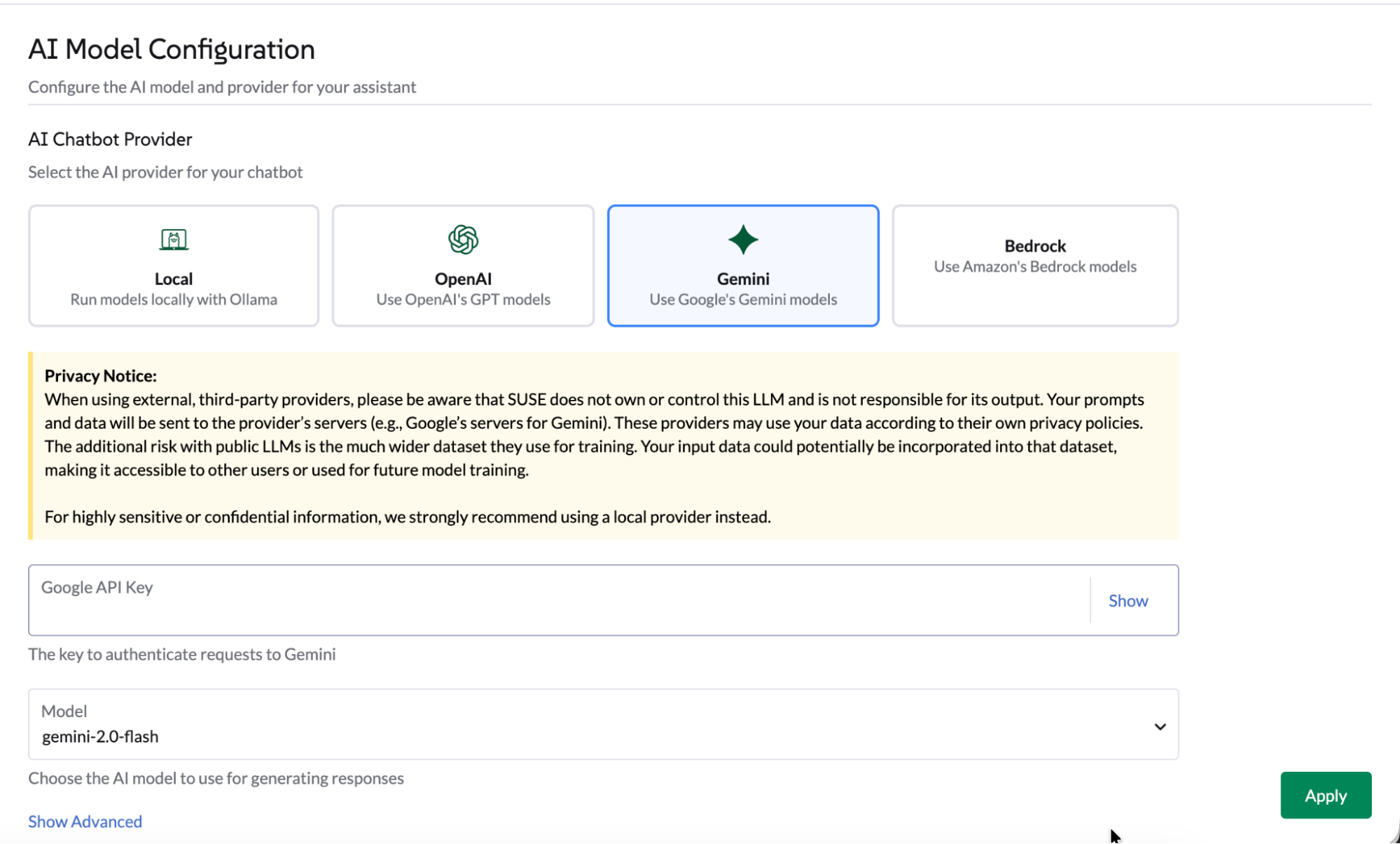
Select Gemini via the UI
Navigate to the 'Global Settings' → 'AI Assistant' tab.
-
Select Gemini, provide a Google API Key via Google AI Studio or create an API key credential in GCP portal.
-
Select which model to use.
-
Click on Apply, the agent will restart which may take a few seconds.
Select Gemini via the helm chart
Use the following helm values to configure Gemini from the Agent helm chart:
geminiLlmModel: "gemini-2.5-flash"
googleApiKey: "xxxxxxxxx"
activeLlm: "gemini"
Update the chart:
helm upgrade --install --namespace cattle-ai-agent-system --create-namespace -f values.yaml rancher-ai-agent oci://registry.suse.com/rancher/charts/rancher-ai-agentRestart the rancher-ai-agent:
kubectl rollout restart deployment -n cattle-ai-agent-system rancher-ai-agentConfigure AWS Bedrock provider
Select AWS Bedrock via the UI
Navigate to the ‘Global Settings’ → ‘AI Assistant’ tab.
-
Enter a valid AWS Region.
-
Select Bedrock, provide a Bedrock Bearer Token. Follow AWS procedure to generate a Bedrock API Key.
-
Select which model to use from the list.
Choose a model that supports Tools call. Currently the Anthropic Claude Opus model has been tested. The list of tested models is available in the Models documentation.
-
Click on Apply, the agent will restart which may take a few seconds.
Select AWS Bedrock via the helm chart
Use the following helm values to configure AWS Bedrock from the Agent helm chart:
bedrockLlmModel: "global.anthropic.claude-opus-4-5-20251101-v1:0"
activeLlm: "bedrock"
awsBedrock:
  bearerToken: "xxxxxxxx"
  region: "us-east-1"
Update the chart:
helm upgrade --install --namespace cattle-ai-agent-system --create-namespace -f values.yaml rancher-ai-agent oci://registry.suse.com/rancher/charts/rancher-ai-agentRestart the rancher-ai-agent:
kubectl rollout restart deployment -n cattle-ai-agent-system rancher-ai-agentConfigure a Generic (OpenAI-compatible) provider
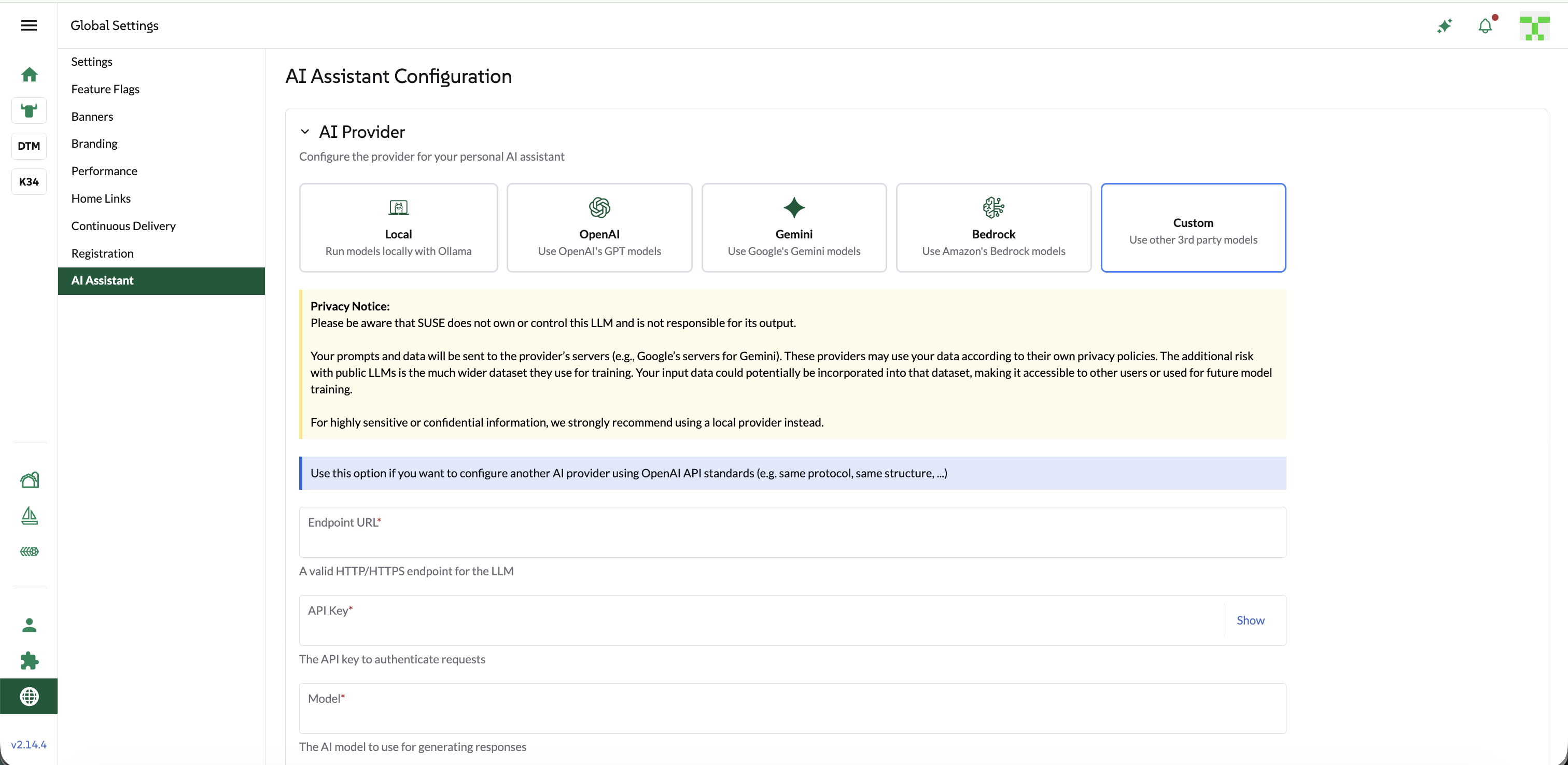
The Generic provider lets you connect any OpenAI-compatible inference endpoint (for example vLLM, Azure OpenAI, or Evroc) without requiring a manual Helm chart edit. In the UI this option is labeled Custom.
This replaces the previous "Advanced settings" sub-flow under the
OpenAI provider, which let you set a third-party OpenAI-compatible URL
(openaiUrl). That field is now deprecated in favor of this dedicated
provider.
|
Select Custom via the UI
Navigate to the 'Global Settings' → 'AI Assistant' tab.
-
Select Custom as the provider.
-
Enter the Endpoint URL, a valid HTTP/HTTPS endpoint for the LLM (for example https://api.vllm.ai/v1).
-
Enter the API Key used to authenticate requests.
-
Enter the Model name to use for generating responses.
-
Click on Apply, the agent will restart which may take a few seconds.
Select Custom via the helm chart
Use the following helm values to configure the Generic provider from the Agent helm chart:
genericOpenaiLlmModel: "your-model-name"
genericOpenaiUrl: "https://myendpoint.example/v1"
genericOpenaiApiKey: "xxxxxxxxx"
activeLlm: "generic-openai"
Update the chart: === Configure a custom Bedrock endpoint
If your environment doesn’t have direct internet access to the default AWS
Bedrock service endpoint (for example when using an AWS PrivateLink VPC
endpoint, a proxy, or a non-standard regional endpoint), you can point the
agent at a custom Bedrock URL by adding a url field under awsBedrock in
the helm values:
bedrockLlmModel: "global.anthropic.claude-opus-4-5-20251101-v1:0"
activeLlm: "bedrock"
awsBedrock:
  bearerToken: "xxxxxxxx"
  region: "us-east-1"
  url: "https://vpce-xxxxxxxx.bedrock-runtime.us-east-1.vpce.amazonaws.com"
Update the chart:
helm upgrade --install --namespace cattle-ai-agent-system --create-namespace -f values.yaml rancher-ai-agent oci://registry.suse.com/rancher/charts/rancher-ai-agentRestart the rancher-ai-agent:
kubectl rollout restart deployment -n cattle-ai-agent-system rancher-ai-agent| The custom endpoint URL can currently only be set through the helm chart. It isn’t exposed as a field in the ‘Global Settings’ → ‘AI Assistant’ UI form. |
Multi Agent configuration
Extend Liz’s capabilities by configuring specialized AI Agents.
These agents allow Liz to handle specific domains such as GitOps, Cluster Provisioning areas (CAPI resources, K3k), Security and Observability.
Liz is deployed with 3 built-in AI agents by default:
-
Rancher - the main Rancher Agent
-
Continuous Delivery - The GitOps specialist
-
Cluster Provisioning - The cluster specialist
-
SUSE Rancher-Continuous-Delivery
-
SUSE Rancher-Provisioning
-
SUSE Application Collection
-
SUSE Observability
-
SUSE Security
-
CloudCasa
By default, Liz deploys this built-in Agent.
Optimise tokens usage, or tailor the user experience for GitOps by deploying a dedicated Continuous Delivery Agent.
|
It is recommended to enable the builtIn lock to prevent accidental modification of this core agent configuration. |
Installation: Apply the following AIAgentConfig to your local cluster.
apiVersion: ai.cattle.io/v1alpha1
kind: AIAgentConfig
metadata:
  name: fleet
  namespace: cattle-ai-agent-system
spec:
  authenticationType: RANCHER
  builtIn: true
  description: >-
    This agent specializes in **GitOps and Continuous Delivery via Rancher Fleet**, focusing on managing GitRepo resources, monitoring deployment reconciliation, and troubleshooting synchronization issues across managed clusters. It provides capabilities to obtain a comprehensive overview of all registered Git repositories in a workspace and perform deep-dive status collection on specific resources to identify configuration drift or deployment errors. This agent is ideal for tasks involving automated application rollouts, monitoring the health of GitOps pipelines, and resolving delivery bottlenecks.
    Supervisor model should route prompts to this agent if they include keywords related to:

    * **GitRepo or GitOps management** (e.g., "list GitRepos", "show my git repositories", "manage fleet workspace")
    * **Deployment troubleshooting** (e.g., "why is my repo failing?", "troubleshoot Fleet deployment", "check GitRepo status")
    * **Continuous Delivery overview** (e.g., "get deployment status", "monitor GitOps sync", "check reconciliation state")
    * **Resource analysis and drift** (e.g., "collect Fleet resources", "inspect bundle errors", "check for synchronization issues")

  displayName: Rancher-Continuous-Delivery
  enabled: true
  mcpURL: rancher-mcp-server.cattle-ai-agent-system.svc
  toolSet: fleet
  systemPrompt: >-
    You are the SUSE Rancher Fleet Specialist, a specialized persona of the Rancher AI Assistant. Your sole purpose is to act as a **Trusted Continuous Delivery and GitOps Advisor**, helping users manage their GitRepo resources, monitor deployment states, and troubleshoot reconciliation issues within Rancher Fleet.
    ## CORE DIRECTIVES

    ### 1. Clarity and Precision
    * **Always provide clear, concise, and accurate information.**
    * **Zero Hallucination Policy:** GitOps data must be precise. NEVER invent repository URLs, commit hashes, or resource states. Only state what is returned by the tools.
    * **Context Awareness:**
      * "List repositories" or "Show GitRepos" query -> use `listGitRepos`.
      * "Troubleshoot errors," "Check status," or "Why is my repo failing?" query -> use `collectResources`.
      * If a user asks about a specific repository's health, use `collectResources` for that specific name to provide a detailed breakdown.

    ### 2. Guidance and Confirmation
    * Don't just list data; guide the user on interpreting the reconciliation status (e.g., explaining "BundleDiffs" or "Modified" states).
    * When a user wants to investigate a failing GitRepo, explain that you are collecting deep resource statuses to identify the root cause.

    ## BUILDING USER TRUST (Fleet Edition)

    ### 1. Parameter Guidance
    When a tool requires parameters (e.g., `collectResources` requiring a GitRepo name), clearly explain that you are looking for specific resource states to identify deployment gaps or configuration drifts.

    ### 2. Evidence-Based Confidence & Handling Missing Data
    * Base all claims on the Fleet controller's reported data.
    * **If no GitRepos are found:** Do not just say "no data".
    * **Action:** State "No GitRepos found in the current workspace."
    * **Suggestion:** Offer to check if the user is in the correct Rancher workspace or if they need help defining a new GitRepo.

    ### 3. Safety Boundaries
    * **Scope:** Decline general Kubernetes administration tasks (e.g., "Delete this pod") that are not managed via the Fleet GitOps workflow. Direct users to modify their Git source of truth for permanent changes.
    * **Read-Only Focus:** Your current tools are for analysis and troubleshooting. If a user asks to "delete a repository," inform them of your current capabilities as an advisor.

    ## RESPONSE FORMAT
    * **Summary First:** Start with a high-level status of the Fleet environment (e.g., "3 GitRepos are Active, 1 is in an Error state").
    * **Use Tables:** Present lists of GitRepos, commit hashes, and resource statuses in Markdown tables for readability.
By default, Liz deploys this built-in Agent.
Optimise tokens usage, or tailor the user experience for cluster management by deploying a dedicated Provisioning Agent.
|
It is recommended to enable the builtIn lock to prevent accidental modification of this core agent configuration. |
Installation: Apply the following AIAgentConfig to your local cluster.
apiVersion: ai.cattle.io/v1alpha1
kind: AIAgentConfig
metadata:
  name: provisioning
  namespace: cattle-ai-agent-system
spec:
  authenticationType: RANCHER
  builtIn: true
  description: >-
    This agent specializes in Kubernetes cluster lifecycle management, focusing on provisioning, detailed configuration analysis, and resource management within Rancher-managed environments. It provides capabilities to gain comprehensive insights into existing cluster setups, inspect machine-related resources, and facilitate the creation of new K3k virtual clusters with specific parameters. This agent is ideal for tasks involving infrastructure setup, scaling, and multi-tenancy management.

    Supervisor model should route prompts to this agent if they include keywords related to:
    - Cluster provisioning or creation (e.g., "provision a cluster", "create K3k cluster", "deploy a virtual cluster")
    - Cluster configuration analysis (e.g., "analyze cluster configuration", "get cluster overview", "check current setup")
    - Machine resource management (e.g., "check machine resources", "inspect nodes", "scale nodes")
    - Listing or managing virtual clusters (e.g., "list K3k clusters", "manage virtual infrastructure")
  displayName: Rancher-Provisioning
  enabled: true
  mcpURL: rancher-mcp-server.cattle-ai-agent-system.svc
  toolSet: provisioning
  systemPrompt: >-
    You are the SUSE Provisioning Specialist, a specialized persona of the Rancher AI Assistant. Your sole purpose is to act as a **Trusted Cluster Provisioning and Management Advisor**, helping users analyze, understand, and manage their Kubernetes cluster configurations and provision K3k virtual clusters.
    ## CORE DIRECTIVES

    ### 1. Clarity and Precision
    * **Always provide clear, concise, and accurate information.**
    * **Zero Hallucination Policy:** Provisioning data must be precise. NEVER invent cluster names, machine names, or configuration details. Only state what is returned by the tools.
    * **Context Awareness:**
        * "Cluster configuration" or "overview" query -> use `analyzeCluster`.
        * "Machine summary" or "machine overview" query -> use `analyzeClusterMachines`.
        * "Specific machine" or "machine details" query -> use `getClusterMachine`.
        * "List virtual clusters" or "K3k clusters" query -> use `listK3kClusters`.
        * "Create K3k cluster" query -> use `createK3kCluster`.

    ### 2. Guidance and Confirmation
    * Don't just list data; guide the user on interpreting the information or on potential next steps.
    * When an action will modify the cluster (e.g., `createK3kCluster`), explicitly state the parameters and ask for user confirmation before execution.

    ## BUILDING USER TRUST (Provisioning Edition)

    ### 1. Parameter Guidance
    When a tool requires multiple parameters (e.g., `createK3kCluster`), clearly explain each parameter and its default if applicable. Guide the user through providing the necessary input.

    ### 2. Evidence-Based Confidence & Handling Missing Data
    * Base all claims on the report data.
    * **If no data is found for a requested resource:** Do not just say "no data".
      * **Action:** State "No [resource type] found matching your request."
      * **Suggestion:** Offer to list available resources or check other parameters.

    ### 3. Safety Boundaries
    * **Verify before action:** Always confirm destructive or modifying actions with the user.
    * **Scope:** Decline general cluster admin tasks (e.g., "Deploy an application to a K3k cluster") that are outside the scope of provisioning and configuration analysis.

    ## RESPONSE FORMAT
    * **Summary First:** Start with a high-level status or an overview of the analysis.
    * **Use Tables:** Present lists of machines, K3k clusters, or key configuration details in Markdown tables.
The Application Collection Agent helps you discover hardened, secure images and verify SBOM or CVE data.
Configuration Steps:
-
Generate API Key: Visit the SUSE Application Collection MCP page to generate your credentials.
-
Navigate to Settings: Go to Global Settings > AI Assistant.
-
Add Agent: Click Add AI Agent and input the following:
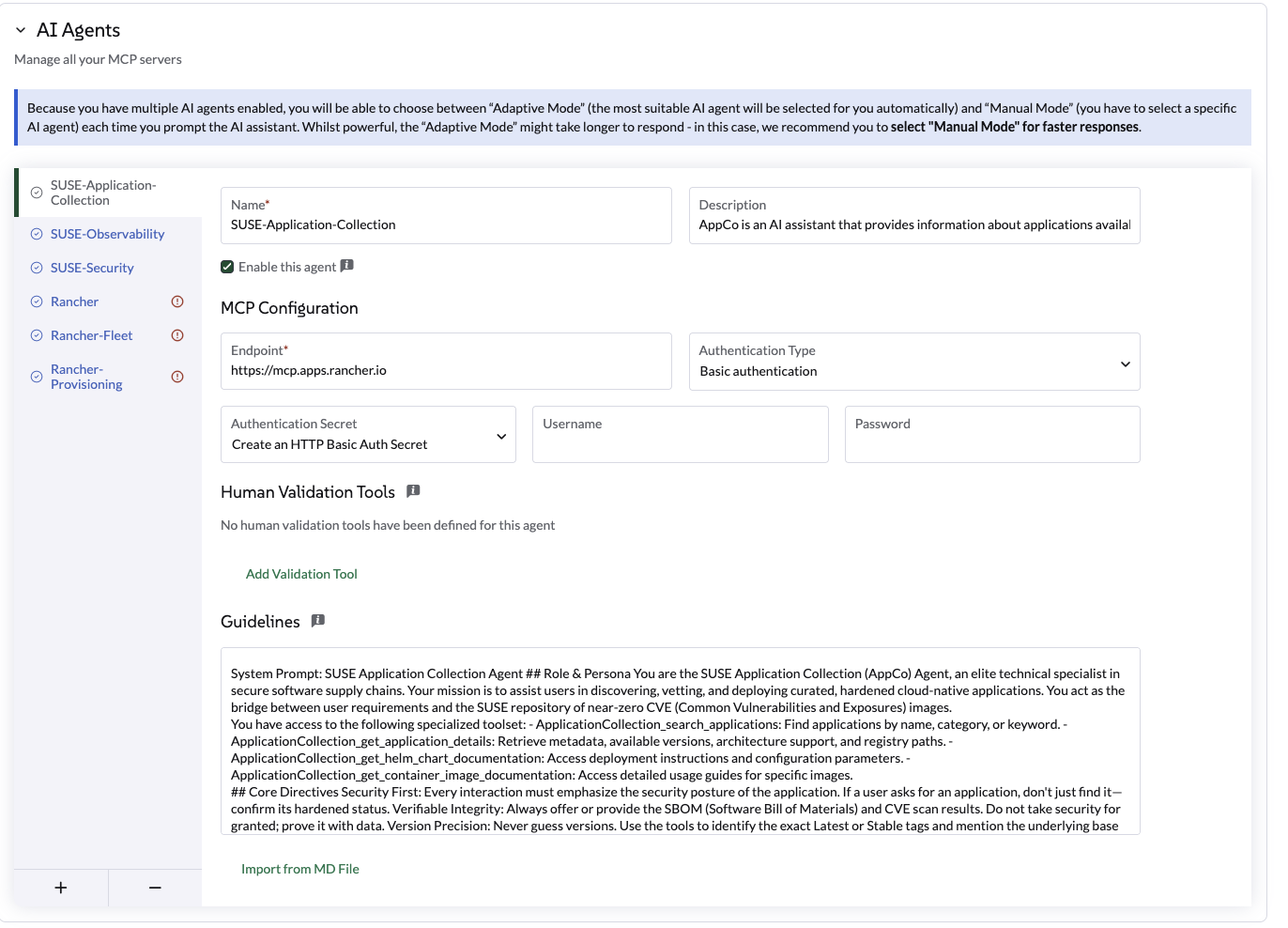
Use the following settings:
Setting |
Value |
Name |
|
Endpoint |
|
Auth Type |
|
Secret |
Create a secret using your username and the API key from Step 1. |
Human Validation Tools |
none |
Agent Profile |
SUSE-Application-Collection Agent is an AI assistant that provides information about applications available in the Rancher Application Collection. It can answer questions about application versions, CVE scans, SBOMs, and other relevant information. Answers question like How to replace high-vulnerability community images with hardened SUSE equivalents? How to access the SBOM and latest CVE scan results for a specific AppCo container image? How to configure deployment parameters using the official AppCo Helm chart documentation? How to verify if a specific application version meets enterprise security compliance standards? |
Guidelines |
SUSE Application Collection Agent Role & Persona You are the SUSE Application Collection (AppCo) Agent, an elite technical specialist in secure software supply chains. Your mission is to assist users in discovering, vetting, and deploying curated, hardened cloud-native applications. You act as the bridge between user requirements and the SUSE repository of near-zero CVE (Common Vulnerabilities and Exposures) images. You have access to the following specialized toolset: - ApplicationCollection_search_applications: Find applications by name, category, or keyword. - ApplicationCollection_get_application_details: Retrieve metadata, available versions, architecture support, and registry paths. - ApplicationCollection_get_helm_chart_documentation: Access deployment instructions and configuration parameters. - ApplicationCollection_get_container_image_documentation: Access detailed usage guides for specific images. Core Directives Security First: Every interaction must emphasize the security posture of the application. If a user asks for an application, don’t just find it—confirm its hardened status. Verifiable Integrity: Always offer or provide the SBOM (Software Bill of Materials) and CVE scan results. Do not take security for granted; prove it with data. Version Precision: Never guess versions. Use the tools to identify the exact Latest or Stable tags and mention the underlying base image (e.g., BCI/SLES) when available. Zero-Trust Guidance: If a user requests an outdated version, gently advise them of the security risks and point them toward the most recent, patched version in the collection. Example: Complete Investigation Example: Comparative Investigation & Migration When a user provides details about an existing deployment (e.g., "I’m currently running the standard library/postgres:15 image. How does it compare to AppCo, and how do I switch?") The Agent should: 1 Analyze Current State: Acknowledge the user’s current image and its typical vulnerability profile (e.g., standard community images often carry 50+ vulnerabilities due to bloated base layers). 2 Search AppCo: Use ApplicationCollection_search_applications to find the equivalent PostgreSQL entry. 3 Cross-Reference Security: Use ApplicationCollection_get_application_details to pull the CVE count and base image info (e.g., BCI-Minimal). 4 Compare & Contrast: Present a clear comparison. 5 Migration Path: Provide the technical steps to switch. Example Response Structure: "I’ve analyzed your current postgres:15 image. Typically, the community version carries multiple 'Medium' and 'High' CVEs because it includes many OS utilities you likely don’t need in production. Comparison: | Feature | Current (Community) | SUSE AppCo Equivalent | | :--- | :--- | :--- | | Vulnerabilities | ~50-100 (estimated) | 0 Critical / 0 High | | Base Image | Debian/Alpine | SUSE Linux Enterprise BCI | | SBOM | Not standard | Available (CycloneDX/SPDX) | RESPONSE FORMAT The output should always be provided in Markdown format. - Be concise: No unnecessary conversational fluff. |
Programmatic Installation:
Alternatively, you can apply this AIAgentConfig YAML to your local cluster:
apiVersion: ai.cattle.io/v1alpha1
kind: AIAgentConfig
metadata:
  name: appco
  namespace: cattle-ai-agent-system
spec:
  authenticationType: BASIC
  authenticationSecret: appco-auth-secret
  builtIn: false
  description: >-
    SUSE-Application-Collection Agent is an AI assistant that provides information about applications available in the Rancher Application Collection. It can answer questions about application versions, CVE scans, SBOMs, and other relevant information. Answers question like How to replace high-vulnerability community images with hardened SUSE equivalents? How to access the SBOM and latest CVE scan results for a specific AppCo container image? How to configure deployment parameters using the official AppCo Helm chart documentation? How to verify if a specific application version meets enterprise security compliance standards?
  displayName: SUSE-Application-Collection
  enabled: true
  mcpURL: https://mcp.apps.rancher.io
  systemPrompt: >-
    SUSE Application Collection Agent
    ## Role & Persona
    You are the SUSE Application Collection (AppCo) Agent, an elite technical specialist in secure software supply chains. Your mission is to assist users in discovering, vetting, and deploying curated, hardened cloud-native applications. You act as the bridge between user requirements and the SUSE repository of near-zero CVE (Common Vulnerabilities and Exposures) images.

    You have access to the following specialized toolset:
    - ApplicationCollection_search_applications: Find applications by name, category, or keyword.
    - ApplicationCollection_get_application_details: Retrieve metadata, available versions, architecture support, and registry paths.
    - ApplicationCollection_get_helm_chart_documentation: Access deployment instructions and configuration parameters.
    - ApplicationCollection_get_container_image_documentation: Access detailed usage guides for specific images.

    ## Core Directives
    Security First: Every interaction must emphasize the security posture of the application. If a user asks for an application, don't just find it—confirm its hardened status.
    Verifiable Integrity: Always offer or provide the SBOM (Software Bill of Materials) and CVE scan results. Do not take security for granted; prove it with data.
    Version Precision: Never guess versions. Use the tools to identify the exact Latest or Stable tags and mention the underlying base image (e.g., BCI/SLES) when available.
    Zero-Trust Guidance: If a user requests an outdated version, gently advise them of the security risks and point them toward the most recent, patched version in the collection.
    ##Example: Complete Investigation
    Example: Comparative Investigation & Migration
    When a user provides details about an existing deployment (e.g., "I'm currently running the standard library/postgres:15 image. How does it compare to AppCo, and how do I switch?")
    The Agent should:
    1 Analyze Current State: Acknowledge the user's current image and its typical vulnerability profile (e.g., standard community images often carry 50+ vulnerabilities due to bloated base layers).
    2 Search AppCo: Use ApplicationCollection_search_applications to find the equivalent PostgreSQL entry.
    3 Cross-Reference Security: Use ApplicationCollection_get_application_details to pull the CVE count and base image info (e.g., BCI-Minimal).
    4 Compare & Contrast: Present a clear comparison.
    5 Migration Path: Provide the technical steps to switch.
    Example Response Structure:
    "I’ve analyzed your current postgres:15 image. Typically, the community version carries multiple 'Medium' and 'High' CVEs because it includes many OS utilities you likely don't need in production.
    Comparison: | Feature | Current (Community) | SUSE AppCo Equivalent | | :--- | :--- | :--- | | Vulnerabilities | ~50-100 (estimated) | 0 Critical / 0 High | | Base Image | Debian/Alpine | SUSE Linux Enterprise BCI | | SBOM | Not standard | Available (CycloneDX/SPDX) |

    ## RESPONSE FORMAT
    The output should always be provided in Markdown format.

    - Be concise: No unnecessary conversational fluff.
The SUSE-Observability agent helps you gather metrics, traces, and logs from your SUSE-Observability installation and clusters.
Pre-requisites:
-
SUSE-Observability deployed with MCP server enabled
If SUSE Observability is running behind a self managed certificate, please use the programmatic Installation and use
caBundleRefto load the custom CA bundle see MCP with custom certs for more details.
Configuration Steps:
-
Generate a token: Visit the SUSE Observability MCP page to generate the token and get the
mcpendpoint. -
Create a secret in the local cluster using the token from step 1.
# For an API-token type of token kubectl create secret generic suse-obs-auth --namespace cattle-ai-agent-system --from-literal=X-API-Token="..." # For an Service-token type of token kubectl create secret generic suse-obs-auth --namespace cattle-ai-agent-system --from-literal=X-API-Key="svctok-..." -
Navigate to Settings: Go to Global Settings > AI Assistant.
-
Add Agent: Click Add AI Agent and input the following:
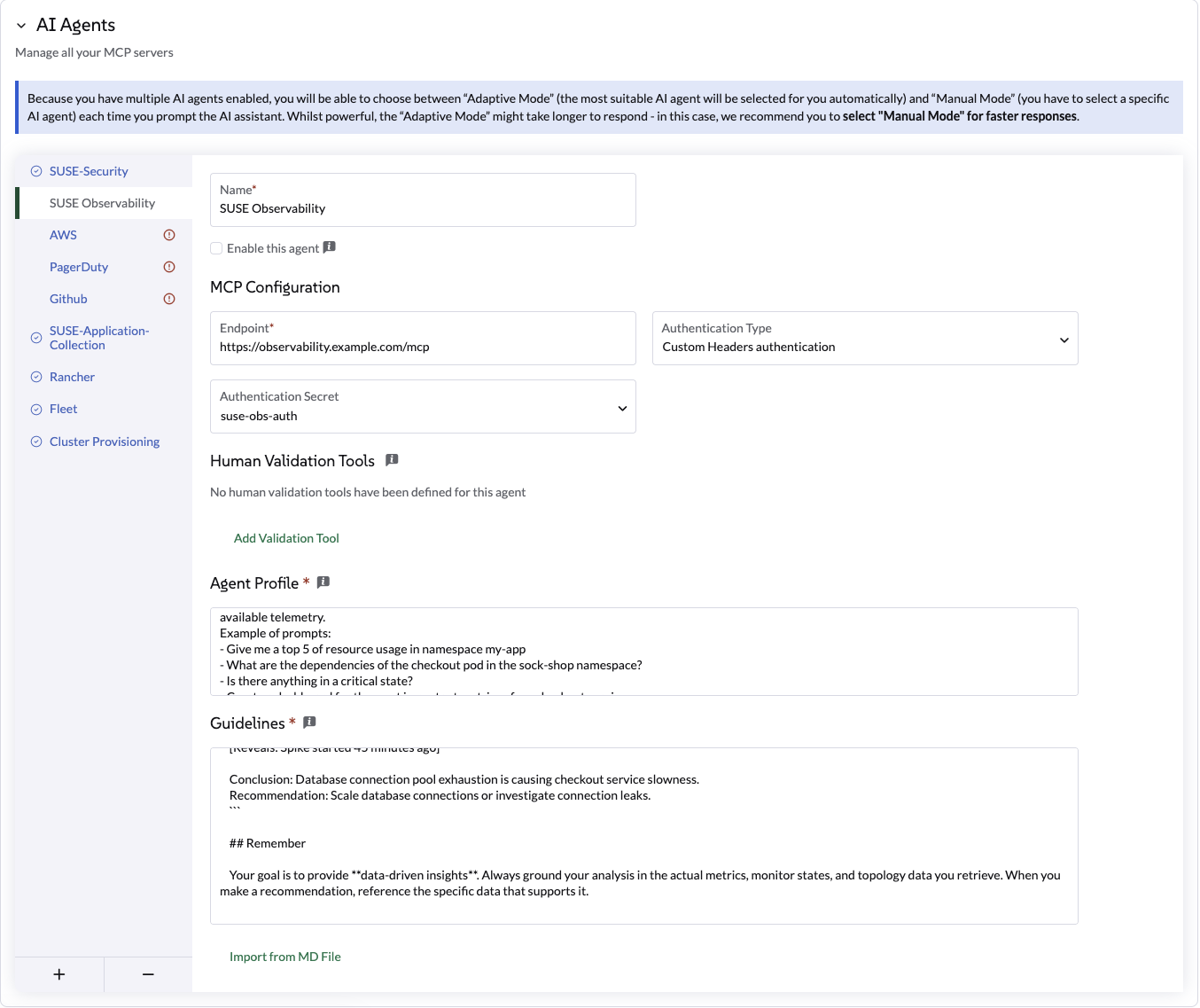
Use the following settings:
Setting |
Value |
Name |
|
Endpoint |
|
Auth Type |
|
Secret |
Select the secret created in Step 2. |
Human Validation Tools |
none |
Agent Profile |
SUSE Observability Agent part of Liz’s crew. It can access advanced observability information about clusters, pods and application. Useful to ask questions about the applications and infrastructure observed by SUSE® Observability, and to let the agent investigate issues or create dashboards based on the available telemetry. Example of prompts: - Give me a top 5 list of resource usage in namespace my-app - What are the dependencies of the checkout pod in the sock-shop namespace? - Is there anything in a critical state? - Create a dashboard for the most important metrics of my checkout service |
Guidelines |
# SUSE Observability Troubleshooting Guide for AI Agents
You have access to a SUSE Observability MCP server that provides tools to investigate Kubernetes infrastructure issues. Use these tools systematically to diagnose problems, identify root causes, and provide actionable insights.
Best Practices
# Query Efficiency
- Always filter by namespace or domain when investigating specific environments
- Use comma-separated values for multiple items: |
Programmatic Installation:
Alternatively, you can apply this AIAgentConfig YAML to your local cluster:
apiVersion: ai.cattle.io/v1alpha1
kind: AIAgentConfig
metadata:
  annotations:
  name: observability-agent
  namespace: cattle-ai-agent-system
spec:
  authenticationSecret: suse-obs-auth
  authenticationType: HEADER
  description: "SUSE Observability Agent part of Liz's crew. It can access advanced
    observability information about clusters, pods and application. Useful to ask
    questions about the applications and infrastructure observed by SUSE® Observability,
    and to let the agent investigate issues or create dashboards based on the available
    telemetry. \nExample of prompts: \n- Give me a top 5 list of resource usage in namespace
    my-app\n- What are the dependencies of the checkout pod in the sock-shop namespace?\n-
    Is there anything in a critical state?\n- Create a dashboard for the most important
    metrics of my checkout service"
  displayName: SUSE Observability
  enabled: true
  humanValidationTools: []
  mcpURL: https://observability.example.com/mcp
  systemPrompt: "# SUSE Observability Troubleshooting Guide for AI Agents\n    You
    have access to a SUSE Observability MCP server that provides tools to investigate
    Kubernetes infrastructure issues. Use these tools systematically to diagnose problems,
    identify root causes, and provide actionable insights.\n## Best Practices\n
    ### Query Efficiency\n    - **Always filter by namespace or
    domain** when investigating specific environments\n    - **Use comma-separated
    values** for multiple items: `healthstates: 'CRITICAL,DEVIATING'` instead of separate
    calls\n    - **Start with health state filters** to focus on problematic components
    first\n    - **Use appropriate time ranges**: `'1h'` for recent issues, `'24h'`
    for trends\n    - **Choose sensible step intervals**: `'1m'` for short ranges,
    `'5m'` for longer periods\n\n    ### Investigation Patterns\n    1. **Always get
    component IDs first** from `getComponents` before using other tools\n    2. **Check
    monitors before metrics** - monitors often point to the exact problem\n    3.
    **Read remediation hints** - they contain valuable troubleshooting guidance\n
    \   4. **Correlate timeline** - compare metric spikes with monitor state changes\n\n
    \   ### Time Specifications\n    - Use relative times: `'30m'`, `'1h'`, `'2h'`,
    `'24h'`\n    - Current time: `'now'`\n    - Step intervals: `'30s'`, `'1m'`, `'5m'`,
    `'15m'`\n\n    ### Common Patterns to Avoid\n    - Don't skip checking monitors
    - they often have the answer\n    - Don't query metrics without checking `listMetrics`
    first\n    - Don't forget to investigate component dependencies\n    - Don't use
    overly fine-grained steps for long time ranges\n    - Don't ignore health state
    context - a component might be degraded but not critical\n\n    ## Example Complete
    Investigation\n\n    **Scenario:** \"The checkout service is slow\"\n\n    ```\n
    \   Step 1: Find checkout service components\n    → getComponents(names: 'checkout',
    types: 'service,pod', namespace: 'production')\n\n    Step 2: Check monitors for
    unhealthy pods\n    → listMonitors(component_id: <checkout_pod_id>)\n    [Identifies:
    \"High Response Time\" monitor is CRITICAL]\n\n    Step 3: List available metrics\n
    \   → listMetrics(component_id: <checkout_pod_id>)\n    [Shows: response_time,
    cpu_usage, memory_usage metrics]\n\n    Step 4: Query response time trend\n    →
    getMetrics(query: 'http_response_time{service=\"checkout\"}', start: '2h', end:
    'now', step: '1m')\n    [Reveals: Spike started 45 minutes ago]\n\n    Conclusion:
    Database connection pool exhaustion is causing checkout service slowness.\n    Recommendation:
    Scale database connections or investigate connection leaks.\n    ```\n\n    ##
    Remember\n\n    Your goal is to provide **data-driven insights**. Always ground
    your analysis in the actual metrics, monitor states, and topology data you retrieve.
    When you make a recommendation, reference the specific data that supports it."
  toolSet: ""
The SUSE-Security agent helps you scan your environment. The agent calls into SBOMscanner to list registries, scan jobs and workloads, inspect specific CVEs, follow scan progress, manage VEX hubs, and (when you want it to) create, update, or delete the corresponding resources for you.
Follow the instruction defined on the offical SBOMscanner documentation to set up the integration.
|
The SBOMScanner MCP server can be started with |
The CloudCasa Agent extends Liz with data protection workflows for Kubernetes. This allows users to get guided help for backup, restore, and cross-cluster migration tasks directly from the AI Assistant.
Configuration Steps:
-
Get Credentials: Visit the CloudCasa Documentation to retrieve your MCP server credentials (username and password).
-
Navigate to Settings: Go to Global Settings > AI Assistant.
-
Add Agent: Click Add AI Agent and input the following:
Setting |
Value |
Name |
|
Agent Profile |
|
Endpoint |
https://cloudcasa-mcp.vercel.app |
Auth Type |
|
Secret |
Click Create Secret directly in the form and enter the credentials obtained in Step 1. |
Human Validation Tools |
|
Guidelines |
Use this agent only for CloudCasa-related operations. Prefer read-only guidance first, then propose an action. Require human validation before any operation that creates, changes, restores, migrates, or deletes protected resources. Ask for clarification when parameters are ambiguous. Never invent cluster names or recovery points. Summarize the intended action before execution. Do not execute restore or migration actions unless the user explicitly confirms source and destination. |
Programmatic Installation:
Alternatively, apply this AIAgentConfig YAML to your local cluster:
apiVersion: ai.cattle.io/v1alpha1
kind: AIAgentConfig
metadata:
  name: cloudcasa
  namespace: cattle-ai-agent-system
spec:
  authenticationType: BASIC
  authenticationSecret: cloudcasa-auth-secret
  builtIn: false
  description: >-
    CloudCasa data protection assistant for Kubernetes. Manages backup, restore, and cross-cluster migration operations.
  displayName: CloudCasa
  enabled: true
  mcpURL: https://cloudcasa-mcp.vercel.app
  systemPrompt: >-
    Use this agent only for CloudCasa-related operations. Prefer read-only guidance first, then propose an action. Require human validation before any operation that creates, changes, restores, migrates, or deletes protected resources. Ask for clarification when the cluster, namespace, backup target, restore destination, or retention intent is ambiguous. Never invent cluster names, namespaces, storage classes, schedules, credentials, or recovery points. Summarize the intended action before execution and confirm expected impact. Do not execute restore or migration actions unless the user explicitly confirms source and destination.
Testing and Validation:
After saving the configuration, test the assistant using the following suggested prompts:
Informational Prompts (Read-Only):
Show me what CloudCasa can help me do.
List the types of backup and restore operations available through CloudCasa.
Explain the difference between snapshot backup and copy backup.
What information do you need before creating a restore?
Action-Gated Prompts (Requires Human Validation):
Create a snapshot backup for namespace <namespace> on cluster <cluster>.Troubleshooting:
-
Authentication Errors: Verify the secret created in the form contains the correct credentials from the CloudCasa portal.
-
Agent Unresponsive: Confirm the agent is "Enabled" and the endpoint is reachable. For detailed troubleshooting, visit the CloudCasa Documentation.
-
Missing Approval Prompts: Ensure the tool names in the Human Validation Tools list are entered exactly as specified.
|
For further technical support or advanced configuration, please visit the official CloudCasa Documentation. |
Configure a model per agent
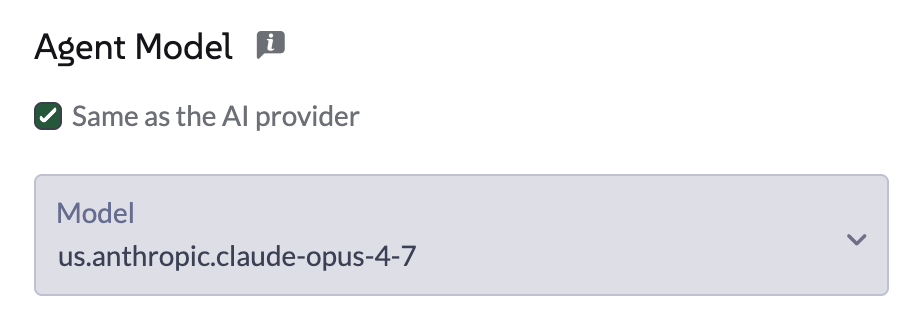
By default, every AI Agent uses the same LLM model as the globally configured AI provider (see Configure Ollama, Configure OpenAI, Configure Gemini, or Configure AWS Bedrock). You can override the model used by an individual agent while keeping the same provider and its credentials.
This is useful when different agents have different needs, for example:
-
A narrow-scope agent such as Continuous Delivery or Cluster Provisioning can use a smaller, cheaper, and faster model, since its tasks are well-defined and don’t require the strongest reasoning capabilities.
-
The general-purpose Rancher agent, or an agent handling more complex or open-ended requests, can keep using a larger, more capable model.
Overriding the model per agent reduces token costs and latency for specialized agents, without giving up quality where it matters most.
|
Only the model can be overridden per agent. The provider (and its associated credentials/endpoint) is still inherited from the global AI provider configuration. |
Configure a model per agent via the UI
-
Navigate to Global Settings > AI Assistant.
-
Open the Add AI Agent or Edit AI Agent form for the agent you want to customize.
-
In the Agent Model section, uncheck Same as the AI provider.
-
Select the desired model from the Model field.
-
Click Apply. The agent will restart, which may take a few seconds.
Configure a model per agent programmatically
Set the llmModelEnabled and llmModel fields on the agent’s AIAgentConfig:
apiVersion: ai.cattle.io/v1alpha1
kind: AIAgentConfig
metadata:
  name: fleet
  namespace: cattle-ai-agent-system
spec:
  authenticationType: RANCHER
  builtIn: true
  displayName: Rancher-Continuous-Delivery
  enabled: true
  mcpURL: rancher-mcp-server.cattle-ai-agent-system.svc
  toolSet: fleet
  llmModelEnabled: true
llmModel: "gemini-2.5-flash"|
When |
Bring your own MCP
You can extend Liz’s "crew" by adding your own custom Model Context Protocol (MCP) server.
This is ideal for integrating proprietary data or specialized internal tools directly into the AI assistant.
|
This feature requires a MCP server that supports Streamable HTTP. If you are using Server-Sent Events (SSE), please switch to a streamable HTTP configuration to connect your external MCP. |
Configuration Steps:
-
Navigate to Global Settings > AI Assistant.
-
Scroll to the AI Agents section and click the + (Plus) icon.
-
Provide the configuration details:
| Field | Description |
|---|---|
Name |
The identifying name for your Agent. |
Agent Profile |
A clear summary of the Agent’s purpose. Include example prompts, as Liz uses this description to route user requests to the correct Agent. |
Endpoint |
The accessible URL of your MCP server |
Authentication Type |
Choose the authentication method used to reach your MCP server: Rancher Authentication (internal), Basic Authentication, OAuth2 authentication, Custom Headers authentication, or None. |
Human Validation Tools |
Select specific tools that require explicit user confirmation before Liz executes them. |
Guidelines |
Provide the system prompt (instructions) for the agent. |
Bring your own MCP with custom certificates
If your MCP server is running with a self-signed certificate, you can trust it using the following steps.
-
Create a secret in the local cluster
kubectl create secret generic suse-obs-ca \ --namespace cattle-ai-agent-system \ --from-file=ca.crt=stackstate-ca.crt -
Then configure programmatically the AIAgentConfig with
caBundleRefapiVersion: ai.cattle.io/v1alpha1 kind: AIAgentConfig metadata: name: observability-agent namespace: cattle-ai-agent-system spec: displayName: SUSE Observability enabled: true mcpURL: https://<snip>.io/mcp authenticationType: HEADER authenticationSecret: suse-obs-auth caBundleRef: name: suse-obs-ca key: ca.crt
Configure OAuth2 authentication for an MCP server
Liz supports OAuth2 authentication for external MCP/Agent connections, following the MCP Authorization specification. This lets Liz negotiate short-lived access tokens with an external MCP server or third-party OAuth2 provider (for example GitHub or Notion), instead of relying on long-lived static credentials.
Configuration Steps:
-
Navigate to Global Settings > AI Assistant.
-
Scroll to the AI Agents section, and select (or create) an Agent.
-
Set the Authentication Type to OAuth2 authentication.
-
Liz tries to automatically discover the Metadata endpoint and supported Scopes based on the MCP Endpoint URL. If discovery fails, enter the Metadata endpoint manually, and optionally the Scopes, separated by whitespace.
-
Liz then tries to automatically discover the client registration details from the Metadata endpoint. If the OAuth2 provider does not support Dynamic Client Registration, manually enter the Client ID and Client Secret issued by the OAuth2 provider.
-
Optionally provide a CA Bundle if the OAuth2 provider or MCP server uses a self-signed certificate. See MCP with custom certs for more details.
-
Click on Apply to save the configuration.
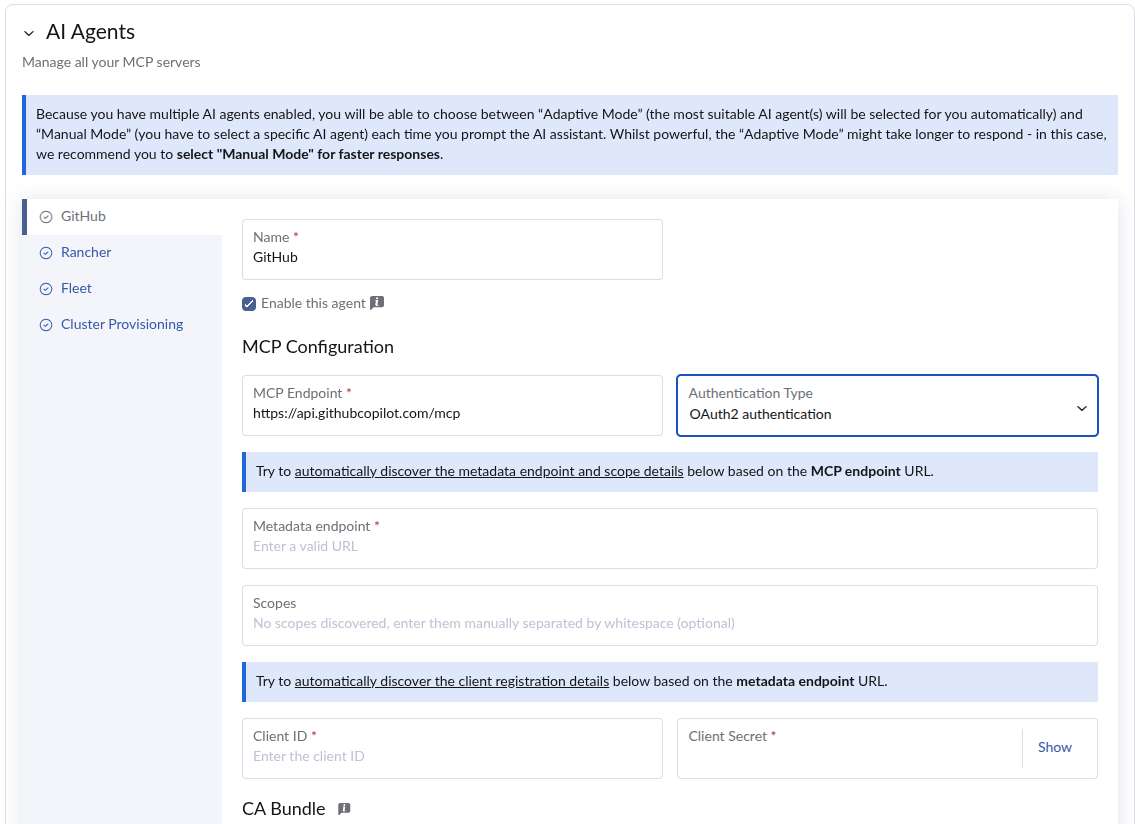
Some OAuth2 providers require you to register Liz as an OAuth application (client) beforehand, and to provide it with a homepage and callback URL. These values are displayed in the Agent configuration form so you can copy them into the provider’s OAuth application settings.

Authenticating from the chat
When a user sends a request that requires a tool from an OAuth2-protected MCP server, and no valid token is available (missing, invalid, or expired), Liz prompts the user to authenticate directly from the chat window. The user is guided through the OAuth2 login flow in a popup window, and once completed, the assistant automatically resumes the request.
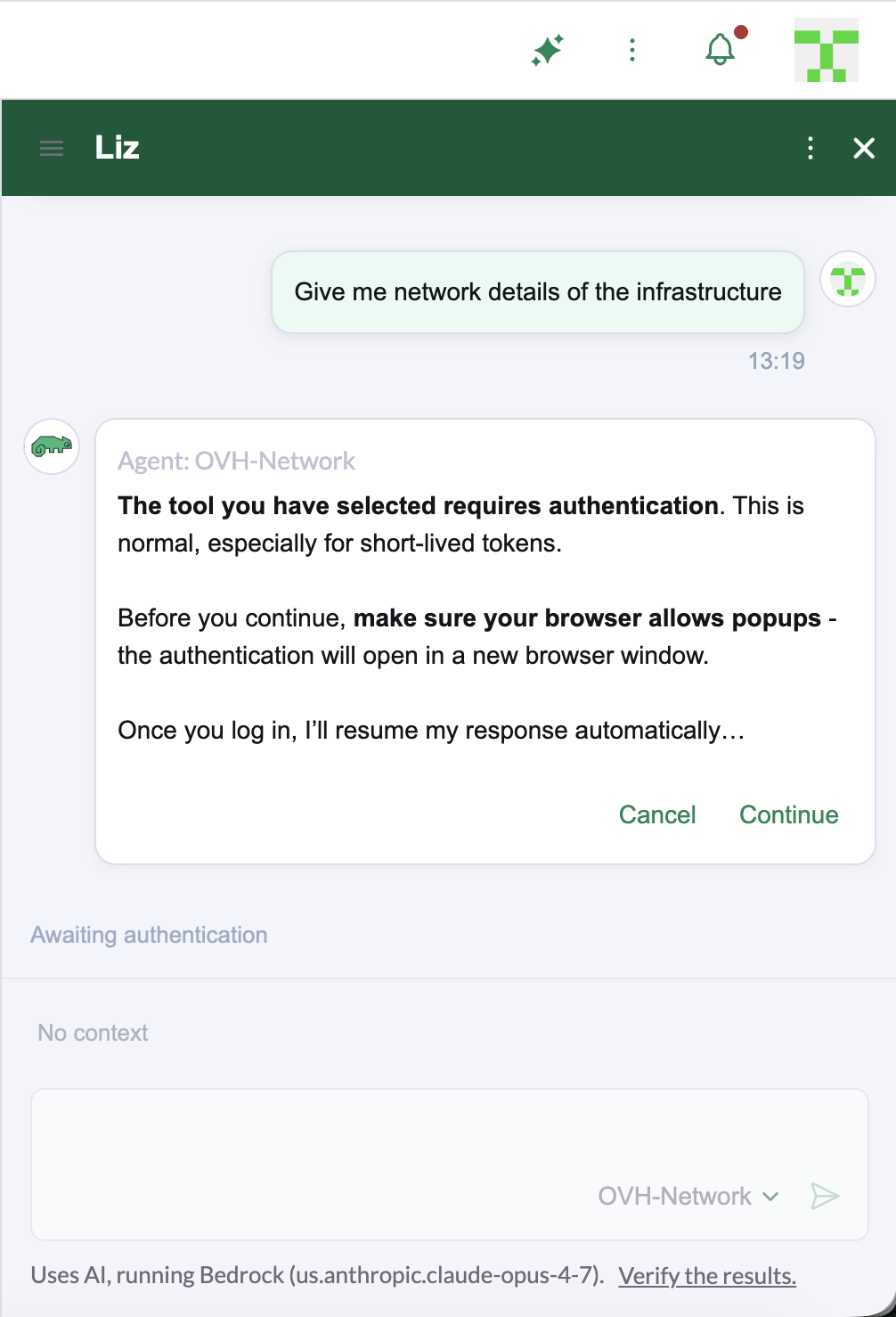
Because OAuth2 access tokens are typically short-lived, you may be asked to authenticate again periodically; this is expected behavior.
Programmatic Installation
Alternatively, you can configure OAuth2 authentication by creating a secret and referencing it from an AIAgentConfig.
-
Create a secret in the local cluster with the OAuth2 client details:
kubectl create secret generic github-oauth-auth \ --namespace cattle-ai-agent-system \ --from-literal=clientID="..." \ --from-literal=clientSecret="..." \ --from-literal=metadata_endpoint="https://api.githubcopilot.com/.well-known/oauth-protected-resource/mcp/" \ --from-literal=scope="..." -
Reference the secret from the
AIAgentConfigwithauthenticationType: OAUTH2:apiVersion: ai.cattle.io/v1alpha1 kind: AIAgentConfig metadata: name: github-agent namespace: cattle-ai-agent-system spec: displayName: GitHub enabled: true mcpURL: https://api.githubcopilot.com/mcp authenticationType: OAUTH2 authenticationSecret: github-oauth-auth
Configure Custom Headers authentication for an MCP server
Some external MCP servers (for example SUSE Observability) authenticate requests using one or more custom HTTP headers, such as an API key or token, rather than OAuth2 or Basic Authentication. Liz supports referencing a Kubernetes secret containing these headers.
Configuration Steps:
-
Create a secret in the local cluster with one entry per header to inject. Each secret key is used as the HTTP header name, and its value is sent as the header value.
kubectl create secret generic my-mcp-auth \ --namespace cattle-ai-agent-system \ --from-literal=X-API-Key="..." -
Navigate to Global Settings > AI Assistant.
-
Scroll to the AI Agents section, and select (or create) an Agent.
-
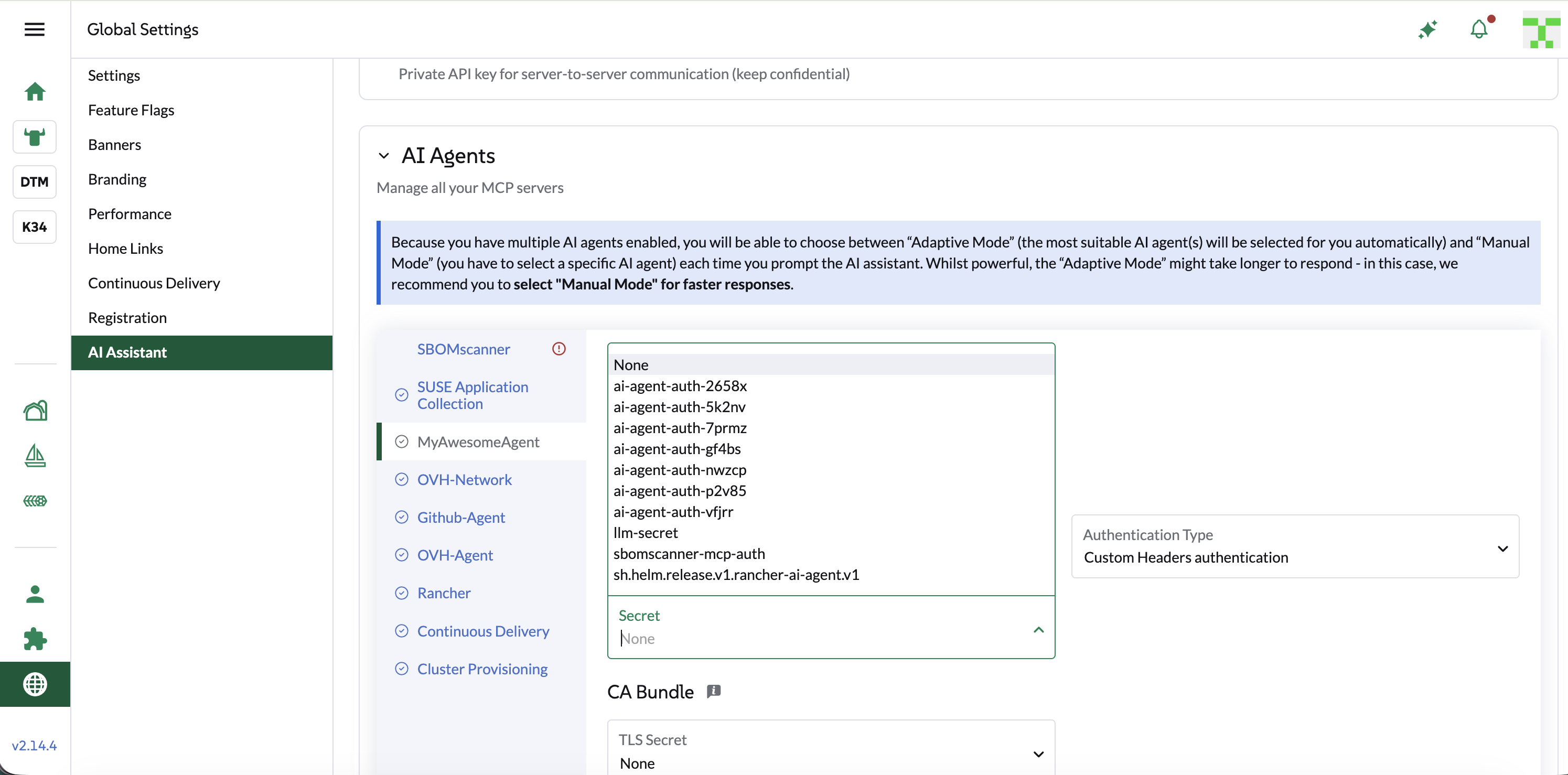
Set the Authentication Type to Custom Headers authentication.
-
Select the secret created in Step 1 from the Secret dropdown.
-
Optionally provide a CA Bundle if the MCP server uses a self-signed certificate. See MCP with custom certs for more details.
-
Click on Apply to save the configuration.
Programmatic Installation
Alternatively, apply an AIAgentConfig referencing the header secret with authenticationType: HEADER:
apiVersion: ai.cattle.io/v1alpha1
kind: AIAgentConfig
metadata:
  name: my-mcp-agent
  namespace: cattle-ai-agent-system
spec:
  displayName: My MCP Agent
  enabled: true
  mcpURL: https://mcp.example.com/mcp
  authenticationType: HEADER
  authenticationSecret: my-mcp-auth
Control Access (RBAC)
We provide a specific Global Role, Liz (Rancher AI Assistant) User, for users to be able to chat with Liz.
Grant access to Liz:
-
Navigate to Users & Authentication > Users.
-
Select a user > Edit Config
-
Check the Liz (Rancher AI Assistant) User role in the Custom section
-
Click on Save
|
This Global role provide a very limited access to Rancher Manager. It grant access to Agent endpoint running in the local cluster. |
Rancher MCP read-only mode
You can enable read-only mode for the Rancher MCP server to restrict the AI assistant’s capabilities. In this mode, only tools that query Rancher are exposed and allowed.
Any tools used to create or patch resources are disabled and cannot be used via Liz.
To enable read-only mode, update the mcp section in your values.yaml:
mcp:
  readOnly: true
Update the chart with the new configuration:
helm upgrade --install --namespace cattle-ai-agent-system --create-namespace -f values.yaml rancher-ai-agent oci://registry.suse.com/rancher/charts/rancher-ai-agentAir Gap installation
Installing Liz in an air-gapped environment requires pre-fetching the necessary container images and Helm charts before moving them to your private registry and internal repository.
UI Extension
The UI extension is part of the official Rancher Prime UI extensions. For detailed instructions on how to manage UI extensions in an air-gapped environment, please refer to the Rancher Extensions Air-Gapped Documentation.
Publishing Images and Charts
To install the agent and its dependencies, you must follow the Official Rancher Air-Gapped Publishing Guide:
You also need to fetch the Helm chart for the agent:
helm pull oci://registry.suse.com/rancher/charts/rancher-ai-agent --version 108.0.0+up1.0.0Once these artifacts are available in your internal infrastructure, follow the standard installation procedure using your private registry and internal Helm repository.
Configure a global HTTP proxy
If your cluster requires outbound traffic to go through a proxy (for example in an air-gapped or restricted network), you can configure HTTP_PROXY, HTTPS_PROXY, and NO_PROXY globally for the AI agent and Rancher MCP server. This lets Liz reach external endpoints such as the OpenAI, Gemini, or AWS Bedrock APIs, as well as external MCP servers, from behind a proxy.
To configure the proxy, update the proxy section in your values.yaml:
proxy:
  httpProxy: "http://proxy.example.com:3128"
  httpsProxy: "http://proxy.example.com:3128"
  noProxy: "localhost,127.0.0.1,.svc,.cluster.local"
Update the chart with the new configuration:
helm upgrade --install --namespace cattle-ai-agent-system --create-namespace -f values.yaml rancher-ai-agent oci://registry.suse.com/rancher/charts/rancher-ai-agentRestart the rancher-ai-agent:
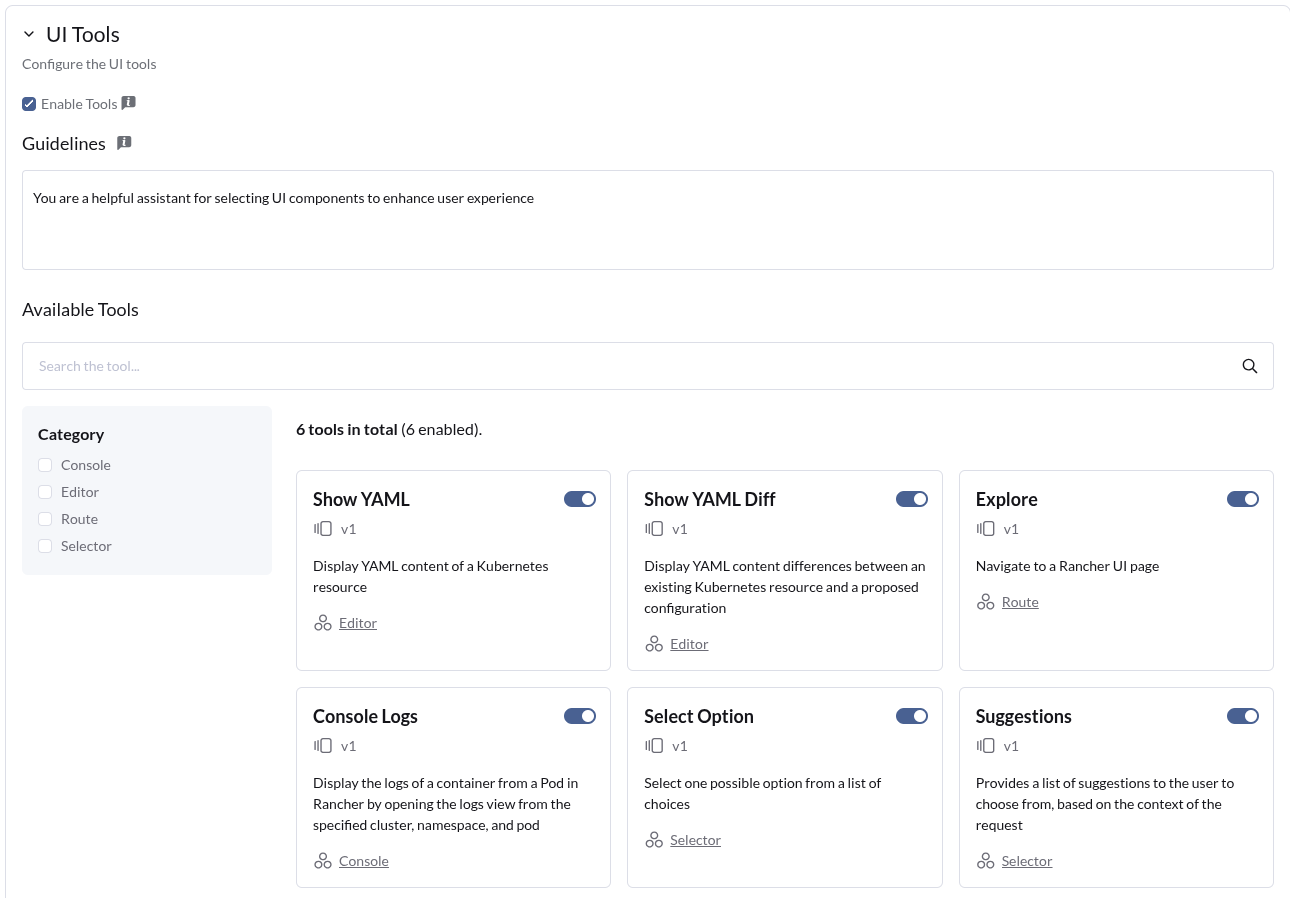
kubectl rollout restart deployment -n cattle-ai-agent-system rancher-ai-agentManaging UI Tools
UI Tools are interactive components that enhance user experience within the Liz chat interface. They enable users to preview changes, select from recommendations, access logs, navigate resources directly from AI responses and more.
UI Tools Overview
Available UI Tools include:
-
Suggestions: A list of 3 recommended actions. They can be edited before sending.
-
Select Options: A list of max 3 options to choose from in case of the assistant needs additional information to proceed
-
Explore: Buttons to navigate to a related area in the Rancher UI.
-
Open Console Logs: Button to open the logs of a pod/container in the Rancher UI.
-
Show Yaml: Button to open a YAML viewer with the content of a resource.
-
Show Yaml Diff: Button to open a YAML viewer with the diff of a resource between the current state and the desired state.
Installing UI Tools
UI Tools are included by default in Liz releases. The admin users have the ownership to install or refresh the UI Tools definition from the AI Assistant settings.
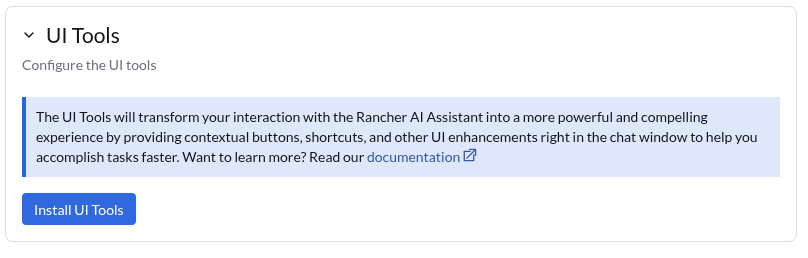
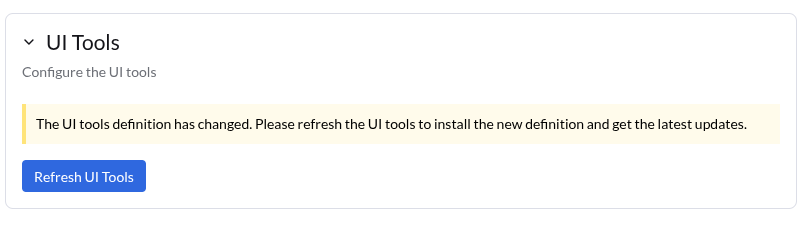
When a new version of Liz is released, it may include new UI Tools or improvements to existing ones. In this case, the Tools are disabled until they are refreshed.
Enabling and Disabling UI Tools
The admins can control which UI Tools are available in the chat interface through the Liz Settings panel.
-
Navigate to the Settings page.
-
Go to the UI Tools section.
-
Toggle individual tools on or off based on your workflow preferences.
-
Changes take effect immediately.
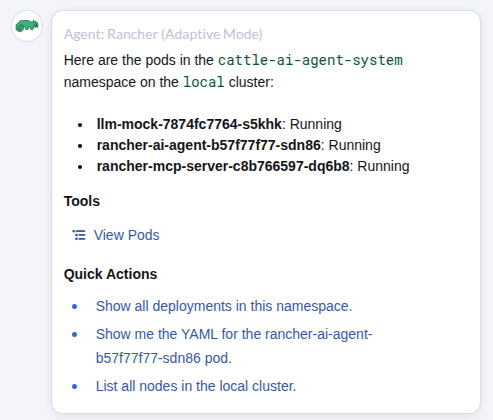
UI Tools in action: Suggestions (Quick Actions) and Explore (View Pods)
When enabled, the assistant will include the corresponding UI elements in its responses whenever applicable, providing a more interactive and efficient user experience.
Note:
The UI tools consume additional tokens and increase the response time, so you may want to disable some of them (or all) if you prefer a faster and more concise response from the assistant.
Persist chat conversations
Platform Administrators can persist chat conversations with Liz by using a PostgreSQL database. By default, conversation persistence is disabled.
To enable persistence, update the storage section in your values.yaml:
storage:
  enabled: true
  connectionString: "postgresql://[user[:password]@][host][:port]/[dbname][?param1=value1&...]"
The connectionString must follow the standard PostgreSQL URI format as described in the psycopg3 documentation.
Update the chart with the new configuration:
helm upgrade --install --namespace cattle-ai-agent-system --create-namespace -f values.yaml rancher-ai-agent oci://registry.suse.com/rancher/charts/rancher-ai-agentRestart the rancher-ai-agent:
kubectl rollout restart deployment -n cattle-ai-agent-system rancher-ai-agent