Configure Microsoft Entra ID
Microsoft Entra ID (Microsoft Graph API)
Microsoft Graph API is the required flow for configuring Microsoft Entra ID (formerly Azure AD) authentication in Rancher. The sections below assist new users in configuring Microsoft Entra ID with a new instance and guide existing app owners in migrating to the Microsoft Graph API flow.
New User Setup
If you have a Microsoft Entra ID tenant, you can configure Rancher to allow users to log in using their directory credentials. Configuring Microsoft Entra ID authentication requires setup steps in both the Microsoft Azure portal and Rancher.
|
Microsoft Entra ID Configuration Outline
Configuring Rancher to allow users to authenticate with their Microsoft Entra ID accounts involves multiple procedures. Review the outline below before getting started.
|
Before you start, open two browser tabs: one for Rancher, and one for the Azure portal. This will make it easier to copy and paste configuration values between the two interfaces. |
1. Register Rancher with Azure
Before enabling Microsoft Entra ID within Rancher, you must register Rancher as an application in your tenant.
-
Log in to the Microsoft Azure Portal as an administrative user (Global Administrator or Application Administrator).
-
Search for and select Microsoft Entra ID (formerly Azure Active Directory).
-
In the left navigation menu, select App registrations.
-
Click + New registration and complete the form.
-
Enter a Name (such as
Rancher). -
Under Supported account types, select Accounts in this organizational directory only (Single tenant).
-
In the Redirect URI section, ensure Web is selected in the platform dropdown menu. Enter your Rancher Server URL appended with the verification path:
<MY_RANCHER_URL>/verify-auth-azure.You can find your exact Redirect URI in Rancher by navigating to the Microsoft Entra ID authentication setup page (Global View > Users & Authentication > Auth Provider > Microsoft Entra ID).
-
Click Register.
-
|
It can take up to five minutes for changes in Microsoft Entra ID to take effect globally. |
2. Create a new client secret
Create a client secret that Rancher will use to authenticate with Microsoft Entra ID.
-
From Microsoft Entra ID > App registrations, select your newly created Rancher application.
-
In the left navigation menu under Manage, click Certificates & secrets.
-
Select the Client secrets tab, then click + New client secret.
-
Enter a Description (such as
Rancher). -
Select an expiration window under Expires.
Shorter durations are more secure but require rotating the secret more frequently. If the application secret expires, users will not be able to log in to Rancher until the secret is rotated in Azure and updated in Rancher. -
Click Add.
-
Copy the string in the Value column immediately.
Copy the secret Value now. Once you navigate away from this page or refresh, the secret value will be permanently masked (
••••••••••••••••). Do not copy the Secret ID.
3. Set Required Permissions for Rancher
Next, set the required Microsoft Graph API permissions for the application registration.
|
Ensure that you set Application permissions, and not Delegated permissions. Delegated permissions will cause login failures. |
-
In the left navigation menu under Manage, select API permissions.
-
Click + Add a permission.
-
Select Microsoft Graph, then select Application permissions.
-
Search for and add the following permission:
Directory.Read.All -
Click Add permissions.
-
Back on the API permissions page, click Grant admin consent for <Tenant Name>, then click Yes to confirm.
|
Rancher performs user and group lookups via the Graph API and requires permissions to:
Alternative permission combinations that satisfy these requirements include:
|
4. Allow Public Client Flows
To allow authentication from the Rancher CLI, enable public client flows:
-
In the left navigation menu under Manage, select Authentication.
-
Scroll to Advanced settings.
-
Under Allow public client flows, select Yes.
-
Click Save.
5. Copy Microsoft Entra ID Application Data
-
Obtain your Tenant ID:
-
Go to Microsoft Entra ID > Overview (or App registrations > your application’s Overview).
-
Copy the Directory (tenant) ID.
-
-
Obtain your Application (Client) ID:
-
On your app registration’s Overview page, copy the Application (client) ID.
-
-
Standard and China cloud environments only require entering the Tenant ID, Application (Client) ID, and Client Secret Value.
For Custom Endpoints:
|
Custom Endpoints are not tested or officially supported by Rancher. |
To locate custom endpoint URLs:
-
From your app registration’s Overview page, click Endpoints in the top toolbar.
-
Select the v1 or v2 endpoints matching your deployment needs:
-
Microsoft Graph API endpoint (Graph Endpoint)
-
OAuth 2.0 token endpoint (Token Endpoint)
-
OAuth 2.0 authorization endpoint (Auth Endpoint)
-
6. Configure Microsoft Entra ID in Rancher
Complete the setup in the Rancher UI:
-
Log into Rancher.
-
In the top left menu, select ☰ > Users & Authentication.
-
In the left menu, click Auth Provider.
-
Click Microsoft Entra ID.
-
Complete the form using the values obtained in Step 5.
The account completing this setup will be granted Rancher administrator privileges. Ensure that this level of access is appropriate before proceeding.
Standard / China Cloud Mapping:
Rancher Field Microsoft Entra ID Value Tenant ID
Directory (tenant) ID
Application ID
Application (client) ID
Application Secret
Client Secret Value
Endpoint
Custom Endpoint Mapping:
Rancher Field Microsoft Entra ID Value Graph Endpoint
Microsoft Graph API Endpoint
Token Endpoint
OAuth 2.0 Token Endpoint
Auth Endpoint
OAuth 2.0 Authorization Endpoint
When entering a custom Graph Endpoint URL, strip the tenant ID suffix from the path (e.g., use
https://graph.microsoft.cominstead ofhttps://graph.microsoft.com/<tenant-id>;). -
(Optional) Filter group memberships to reduce log volume and token overhead (Rancher v2.9.0+). See Filtering Users by Microsoft Entra ID Auth Group Memberships for details.
-
Click Enable.
Result: Microsoft Entra ID authentication is now active.
(Optional) Configure Authentication with Multiple Rancher Domains
When managing multiple Rancher domains, additional Redirect URIs must be configured manually in the underlying azuread authentication resource in Rancher. By default, authentication requests redirect to the primary Redirect URI registered in Step 1.
Migrating from Azure AD Graph API to Microsoft Graph API
The legacy Azure AD Graph API has been retired by Microsoft. Rancher setups using the legacy endpoints must update to Microsoft Graph API to prevent authentication failures.
Updating Endpoints in the Rancher UI
|
Create a full Rancher backup prior to initiating the endpoint migration. |
-
Ensure your app registration in Azure has been updated with the required Microsoft Graph permissions.
-
Log into Rancher as an administrator.
-
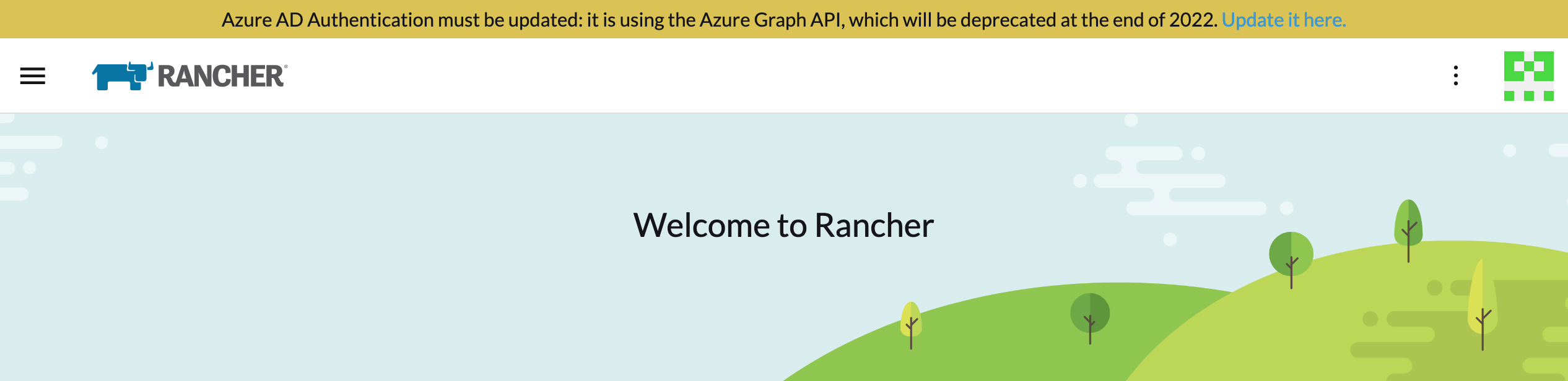
Click the notification banner prompting an update for Microsoft Entra ID authentication.
-
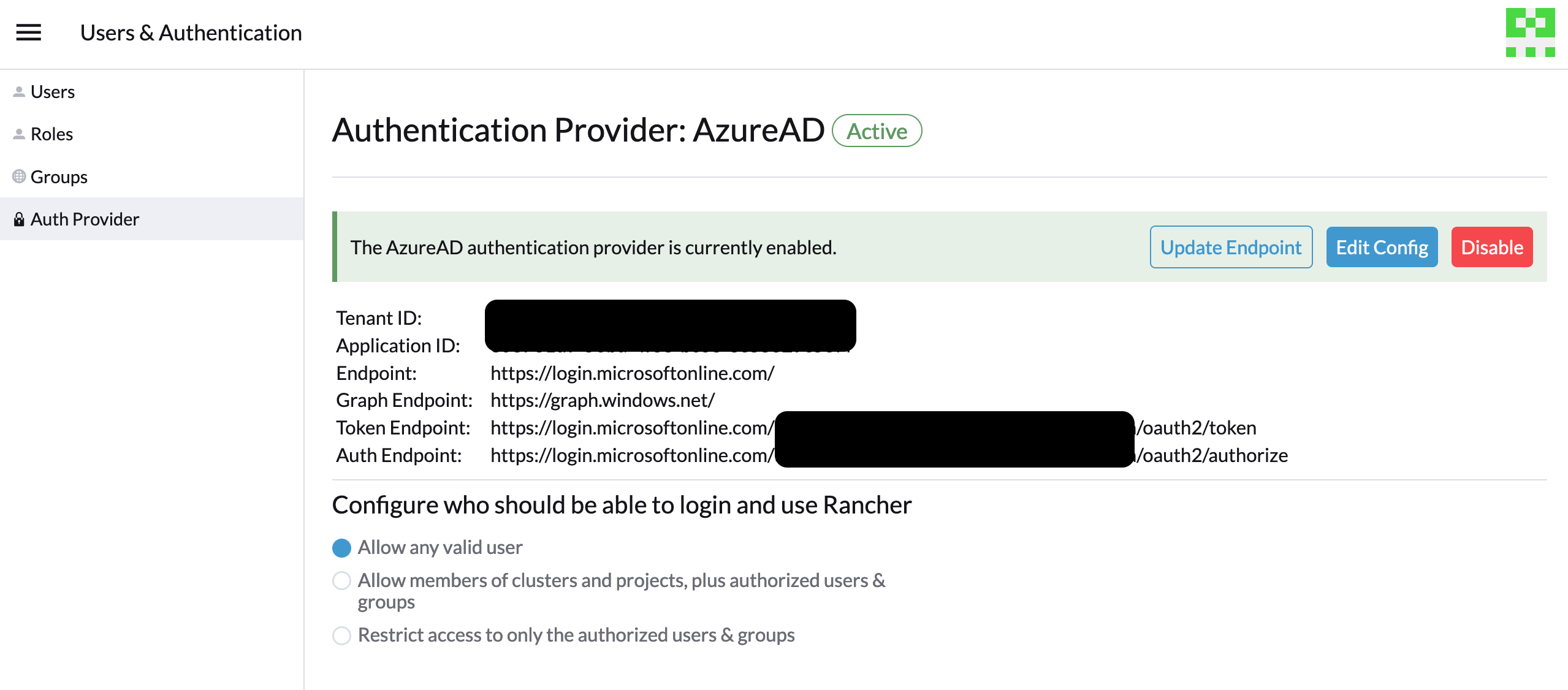
Click Update Endpoint.
-
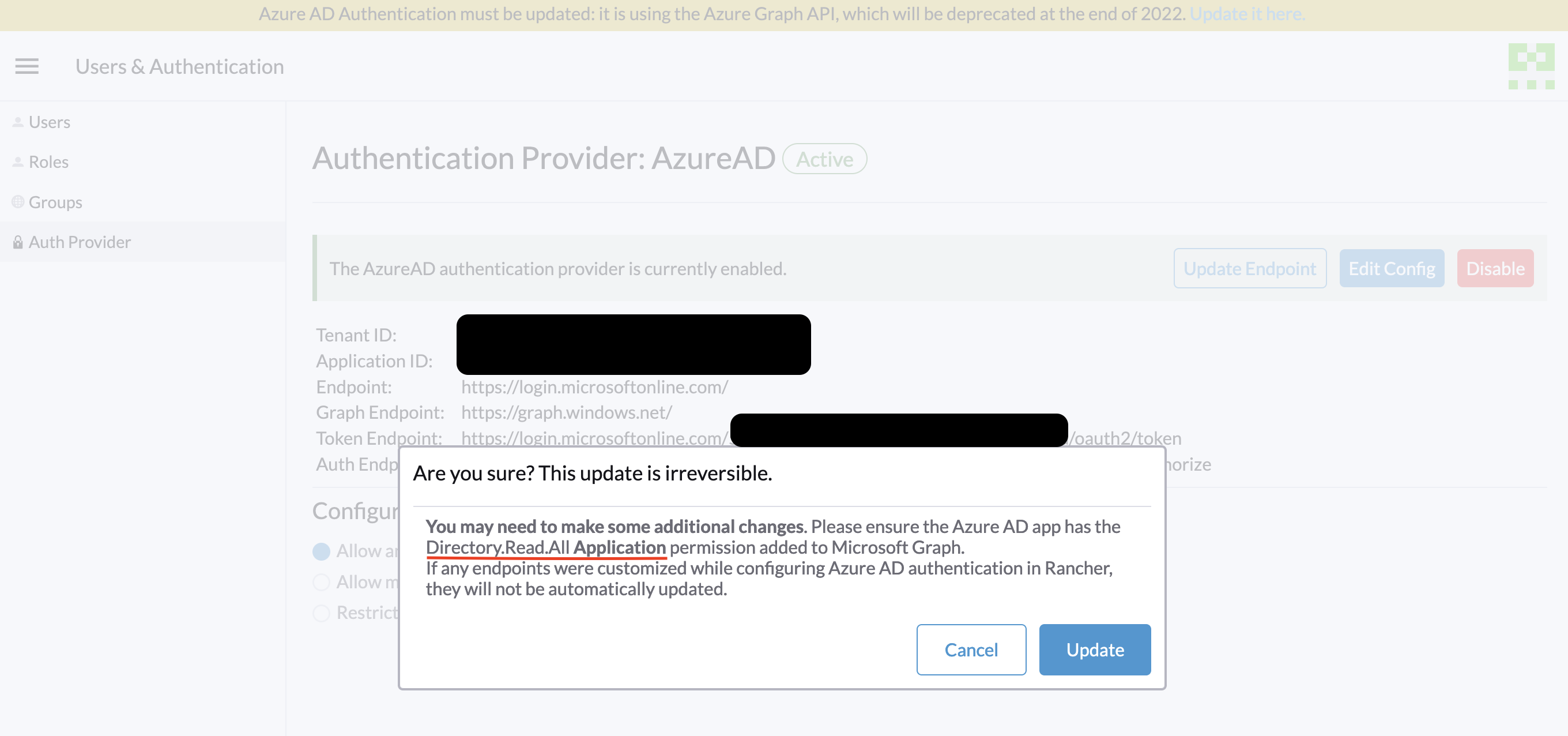
Confirm the action in the pop-up dialog.
Air-Gapped Environments
Air-gapped environments must ensure network access and outbound firewall rules allow access to the new Microsoft Graph endpoints (https://graph.microsoft.com).
Rolling Back the Migration
If recovery or secret rotation is required post-migration:
-
Restore from backup using the standard Rancher restore procedure.
-
To rotate the Application Secret in Rancher, update the Kubernetes secret
azureadconfig-applicationsecretin thecattle-global-datanamespace.
Endpoint Reference (Global)
| Field | Legacy Endpoint (Deprecated) | New Endpoint (Microsoft Graph) |
|---|---|---|
Auth Endpoint |
|
|
Endpoint |
|
|
Graph Endpoint |
|
|
Token Endpoint |
|
|
Endpoint Reference (China)
| Field | Legacy Endpoint (Deprecated) | New Endpoint (Microsoft Graph) |
|---|---|---|
Auth Endpoint |
|
|
Endpoint |
|
|
Graph Endpoint |
|
|
Token Endpoint |
|
|
Filtering Users by Microsoft Entra ID Group Memberships
In Rancher v2.9.0 and later, you can filter group memberships retrieved from Microsoft Entra ID using OData filter expressions.
|
Filtering out a group membership prevents Rancher from seeing that the user belongs to that group. As a result, users will lose any roles or access rights granted via excluded groups. |
-
In Rancher, navigate to ☰ > Users & Authentication > Auth Provider > Microsoft Entra ID.
-
Check Limit users by group membership.
-
Enter an OData filter expression into the Group Membership Filter field (e.g.,
startswith(displayName,'test')).
Deprecated Azure AD Graph API
|
Microsoft Entra ID Roles Claims
Rancher supports the roles claim provided in the Microsoft Entra ID OIDC token, enabling centralized Role-Based Access Control (RBAC) mapping.
By mapping roles claims, administrators can:
-
Define specific application roles in Microsoft Entra ID.
-
Bind Entra ID roles directly to
ProjectRoleorClusterRoleresources within Rancher. -
Delegate identity and role management completely to the external identity provider.
For example, consider the following role structure in Microsoft Entra ID:
| Microsoft Entra ID Role Name | Members |
|---|---|
project-alpha-dev |
User A, User C |
When User A logs into Rancher using Microsoft Entra ID, their OIDC token includes a roles claim containing ["project-alpha-dev"]. Rancher processes the token and adds project-alpha-dev to User A’s internal list of user groups and roles. Because an administrator created a Project Role Binding that maps the Entra ID role project-alpha-dev to the Rancher Dev Member role for Project Alpha, User A is automatically granted Dev Member permissions.