Create a Snapshot
A snapshot is the state of a Kubernetes volume at any given moment in time.
Snapshot Management via SUSE Storage UI
To create a snapshot of an existing cluster, follow these steps:
-
In the top navigation bar of the SUSE Storage UI, click Volume.
-
Click the name of the volume for which you want to create a snapshot. This leads to the volume detail page.
-
Click the Take Snapshot button.
Once the snapshot is created, you can view it in the list of snapshots for the volume before the Volume Head.
Understanding the Snapshot Chain Visualization
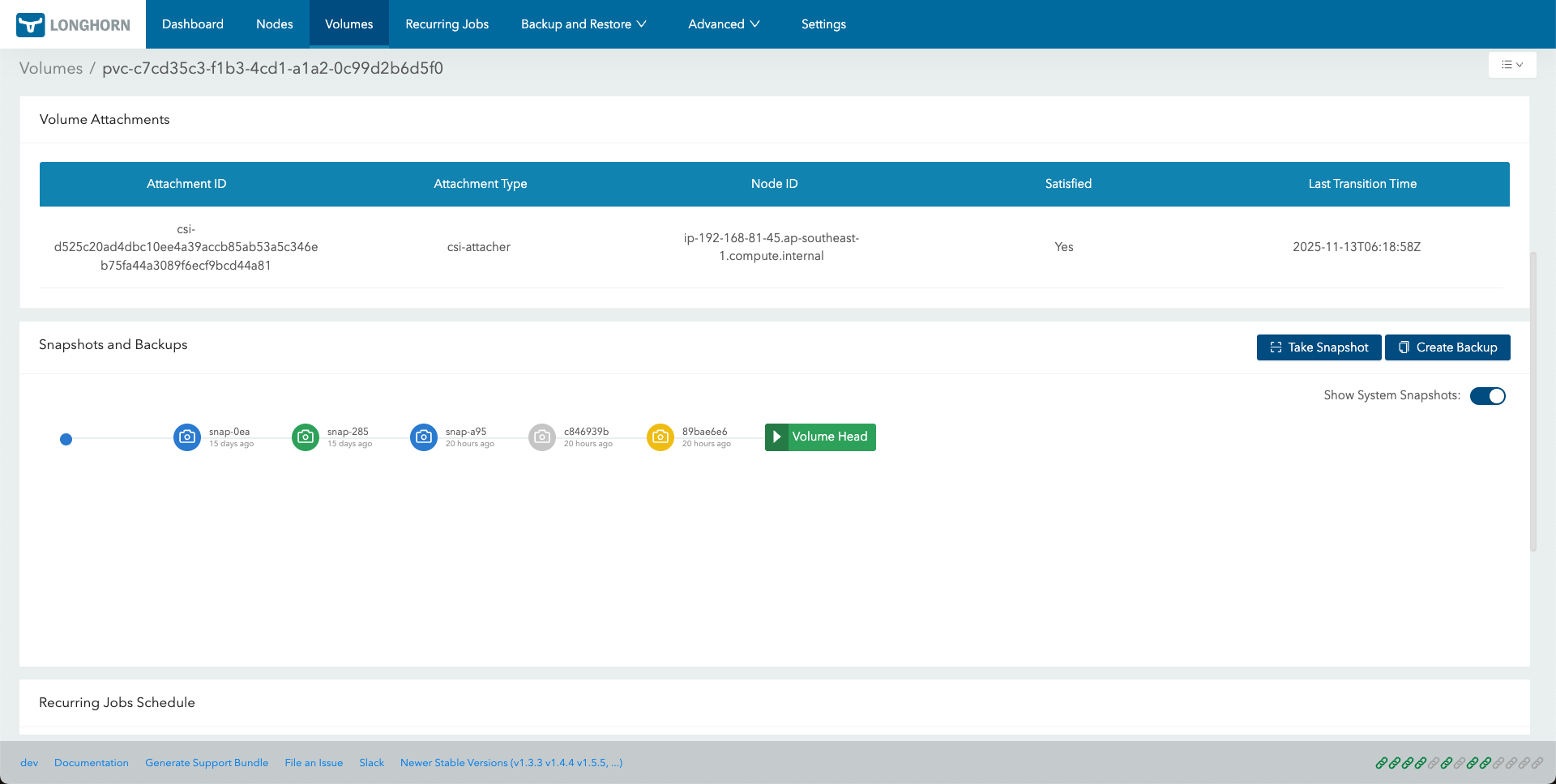
On the Volume Details page, the Snapshots and Backups section displays the snapshot history as a chain. By default, the Show System Snapshots option is enabled, and all system-created snapshots appear in the view.
Each snapshot in the chain is color coded to indicate its type or status. If a snapshot meets multiple criteria, the visualization uses the color with the highest priority.
| Snapshot Type | Color | Description | Priority (1 = highest) |
|---|---|---|---|
Error |
Red |
Indicates that snapshot creation failed or that the snapshot has an issue. |
1 |
Removed |
Light grey |
Indicates that the snapshot is marked for removal or has been deleted. |
2 |
System created |
Orange/Yellow |
Automatically created by Longhorn, often for recurring jobs or internal operations. |
3 |
Backup |
Green |
Indicates that the snapshot has a backup stored on a configured backup target. |
4 |
Default (user created) |
Blue |
A user-initiated snapshot taken manually with the Take Snapshot action. |
5 |
The following figure shows an example of the snapshot chain visualization:
Snapshot Management with Custom Resources (CRs)
This section demonstrates how to create, list, restore and delete Longhorn snapshots directly via kubectl using the Custom Resources (CRs) of SUSE Storage.
|
SUSE Storage uses its own |
Create a snapshot
-
Prepare the manifest - Create a file named
longhorn-snapshot.yamlwith the following content:apiVersion: longhorn.io/v1beta2 kind: Snapshot metadata: name: longhorn-test-snapshot namespace: longhorn-system spec: volume: pvc-840804d8-6f11-49fd-afae-54bc5be639de # replace with your actual Longhorn volume name createSnapshot: true -
Apply the manifest:
kubectl apply -f longhorn-snapshot.yamlExpected output:
snapshot.longhorn.io/longhorn-test-snapshot createdIf the volume is detached, a brief warning about the engine not running appears. SUSE Storage automatically retries and the snapshot completes when the volume is attached.
Data Engine Behavioral Differences
When deleting a snapshot that is the direct parent of the Volume Head (the current active state), the behavior of the Snapshot Custom Resource (CR) depends on the Data Engine being used:
| Behavior | v1 Data Engine | v2 Data Engine |
|---|---|---|
CR Persistence |
The Snapshot CR remains in the system. |
The Snapshot CR is immediately removed. |
Status Fields |
|
Not applicable, because the Snapshot CR is deleted. |
Explanation |
v1 volumes cannot physically merge the parent of a live volume head immediately. The CR remains to track the snapshot data until a later merge or cleanup operation. |
v2 volumes support live merging of the parent snapshot into the volume head, allowing for immediate cleanup of both data and metadata. |
This behavioral difference is expected. In v2 volumes, the immediate disappearance of the Snapshot CR indicates that the engine has successfully finalized the deletion and merged the data.